<?xml version="1.0" encoding="utf-8"?>
<feed xmlns="http://www.w3.org/2005/Atom">
  <title>Peter Toonen on all things tech</title>
  
  <link href="/atom.xml" rel="self"/>
  
  <link href="https://toonen.io/"/>
  <updated>2019-06-11T17:24:28.148Z</updated>
  <id>https://toonen.io/</id>
  
  <author>
    <name>Peter Toonen</name>
    
  </author>
  
  <generator uri="http://hexo.io/">Hexo</generator>
  
  <entry>
    <title>Going paperless: step 1</title>
    <link href="https://toonen.io/2019/06/11/going-paperless-step-1/"/>
    <id>https://toonen.io/2019/06/11/going-paperless-step-1/</id>
    <published>2019-06-11T16:09:25.000Z</published>
    <updated>2019-06-11T17:24:28.148Z</updated>
    
    <content type="html"><![CDATA[<p>In an effort to leave a (little) smaller footprint on this world, I’ve been minimizing the amount of paper I receive through mail every day by requesting digital versions of everything from invoices to tax statements to payment slips. Right now I receive most of these through email as a PDF file and I put them in a folder on my NAS and then never touch it again until I need it. That’s when I spend hours and hours trying to locate what I need. I mean.. search only gets you so far when it concerns images or passworded PDF’s.  </p>
<p>This post describes how to at least get rid of those pesky passworded PDF’s and in the follow-ups on this post, I’ll also dive deeper into my efforts to go truly paperless.</p>
<h2 id="Pesky-Passworded-PDF’s-and-how-to-get-rid-of-them"><a href="#Pesky-Passworded-PDF’s-and-how-to-get-rid-of-them" class="headerlink" title="Pesky Passworded PDF’s and how to get rid of them"></a>Pesky Passworded PDF’s and how to get rid of them</h2><p>Some companies insist on supplying you with a passworded PDF. The problem with these is that you do need the password before they’re searchable and what’s worse.. the password may change over time (or you forget it), leaving you with useless files. Of course I could just open the PDF, enter the password, print the file to another PDF and then save it to my NAS. Or I could print it on paper and put it in a physical folder for safekeeping. But seeing as I want to <em>reduce</em> paper and I hate doing manual labor, I just couldn’t resist automating this. So this is how it went:</p>
<ul>
<li>Every 24 hours, an Azure Logic App checks a subfolder in my Exchange Online mailbox for new mails with PDF attachments</li>
<li>If it finds any emails matching those criteria, it pipes the attachments into an Azure Function</li>
<li>The function removes the password using a password which is stored in Azure Key vault</li>
<li>It then returns a filestream to my Azure Logic App which safely stores it as a PDF in OneDrive</li>
</ul>
<p>The OneDrive folder is then synced with my Synology NAS overnight and there we go.. password removed. </p>
<h2 id="If-only-it-were-that-easy"><a href="#If-only-it-were-that-easy" class="headerlink" title="If only it were that easy"></a>If only it were that easy</h2><p>The idea was simple enough and after finding a library that didn’t need a commercial license and was also .NET Core compatible <a href="https://www.nuget.org/packages/itext7/" target="_blank" rel="noopener">iText 7</a> (<em>MIND YOU</em>: in commercial software you’ll probably want to buy a license due to the AGPL that’s attached to this library), I started to code my Function which was easy enough. But then when deploying, there were a few caveats. The first was that I wouldn’t get any attachments in my function for some reason and then there was the issue of getting my password accessible from within my Function.</p>
<h3 id="Attachments-and-Logic-Apps’-Exchange-Connector"><a href="#Attachments-and-Logic-Apps’-Exchange-Connector" class="headerlink" title="Attachments and Logic Apps’ Exchange Connector"></a>Attachments and Logic Apps’ Exchange Connector</h3><p>Azure Logic Apps is an awesome way to quickly create an application with standard functionality but also allows you to call custom code with a Function connector. In this application I use a few standard connectors and add a custom function. My trigger is a standard Office 365 connector that periodically checks a subfolder in my mailbox, then I have some conditional logic that checks for specific conditions based on the email that triggered the Logic App and if the condition is met, it will proceed with a foreach loop on all the attachments attached to the email and push them through my custom Function which removes the password. Finally another standard OneDrive connector stores the file in my OneDrive account.</p>
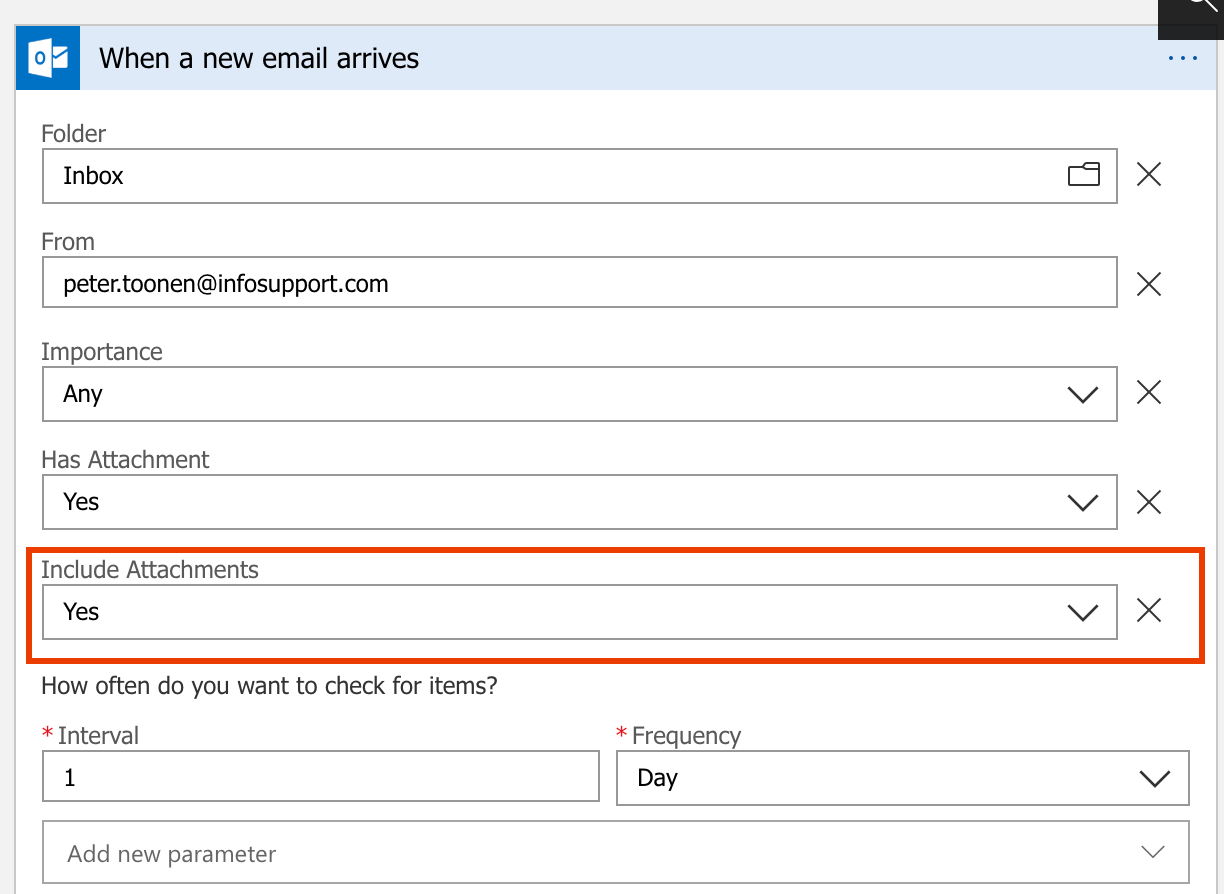
<p>This process took a whole 2 minutes to create the Logic App, create the logic and make it all work. Unfortunately it didn’t work. In fact, I wasn’t getting any attachments into my Function and I couldn’t for the life of it figure out why. But I’ll help you out here and say what I’m almost ashamed to say: the ‘Include Attachments’ dropdown, actually means ‘Do you want to do something with these attachments in the following step?’ and you will probably want to answer this with a firm ‘yes’ :-)</p>
<img src="/2019/06/11/going-paperless-step-1/include-attachments.png" title="Say yes to including attachments">
<p>After this, it was on to the next step.. securing my secrets.</p>
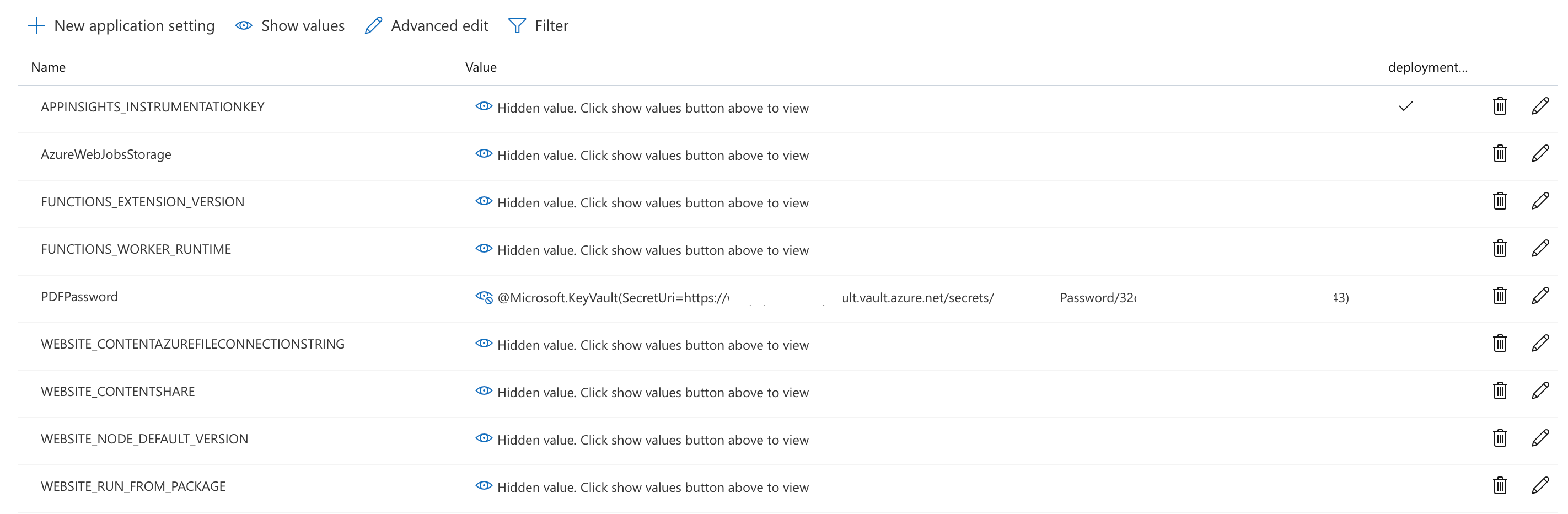
<h3 id="Azure-Functions-MSI-Key-vault-and-VNet-integration"><a href="#Azure-Functions-MSI-Key-vault-and-VNet-integration" class="headerlink" title="Azure Functions, MSI, Key vault and VNet integration"></a>Azure Functions, MSI, Key vault and VNet integration</h3><p>For a while now it is possible to use <a href="https://docs.microsoft.com/en-us/azure/app-service/overview-managed-identity" target="_blank" rel="noopener">Managed Identities</a> in Azure. This is a great solution in case you don’t want to specify a username/password (a secret) to access your secrets because that kind of defeats the point or at the very least complicates things. So there really was no choice other than to store my secrets in a Key vault and then use an MSI (Managed Service Identity) to access the proper secrets. The best thing there is that you can even reference these secrets from within a function by merely using a specially crafted Environment Variable, this process is called <a href="https://docs.microsoft.com/en-us/azure/app-service/app-service-key-vault-references" target="_blank" rel="noopener">‘Key vault References’</a>. You simply create an environment variable called something like ‘MyPDFPassword’ and then as a value you use <code>@Microsoft.KeyVault({referenceString})</code> where {referenceString} is the secret location, something like this:</p>
<img src="/2019/06/11/going-paperless-step-1/keyvault-referencing.png" title="Key vault Referencing">
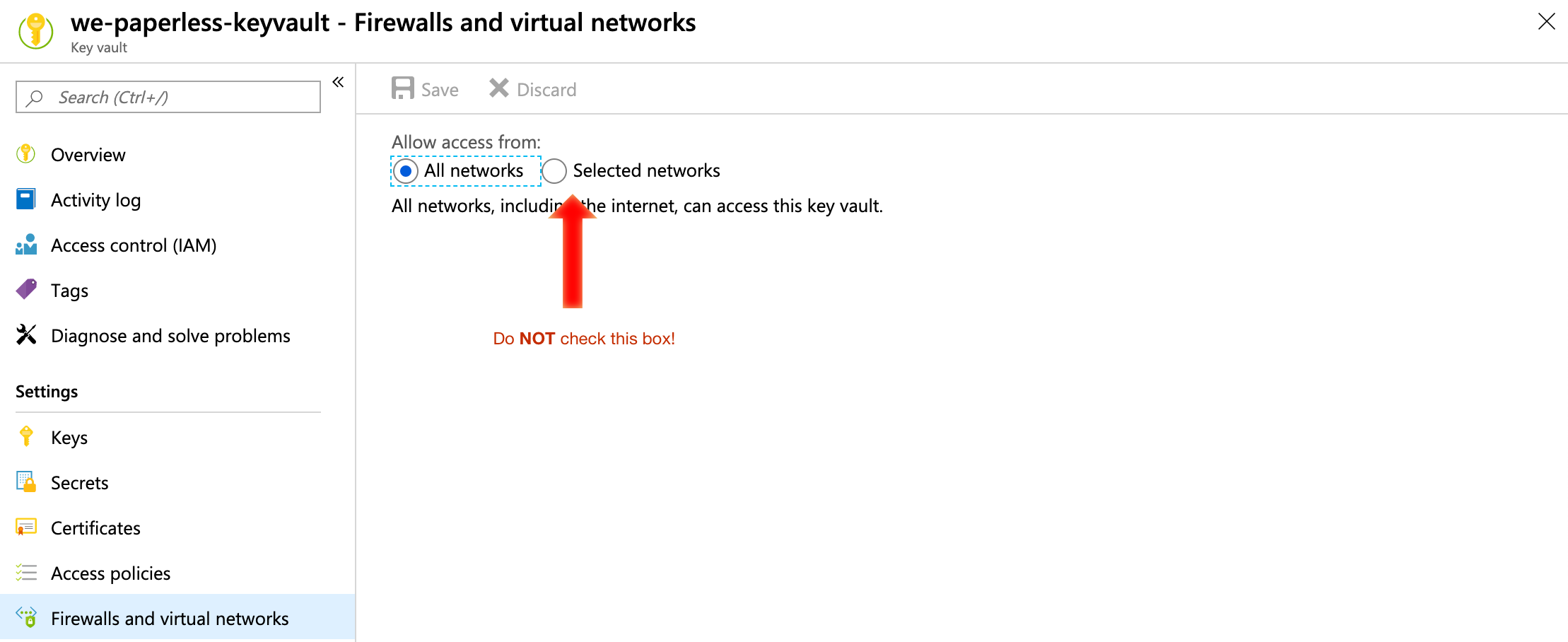
<p>Now all you need to do is grant the MSI you’re using for the function permission to access the secret in your vault and don’t firewall your Key vault. Wait.. what did you say? Isn’t it a good thing to make sure only Azure Services can access my resources? Well yes dear reader, generally it is, but not when your service <a href="https://docs.microsoft.com/en-us/azure/key-vault/key-vault-overview-vnet-service-endpoints#trusted-services" target="_blank" rel="noopener">isn’t supported yet</a>! Even though Azure App Service is mentioned there, and even though Azure Functions may run in ‘sort of an App Service’, do not make make the same mistake I did and tick the ‘Selected networks’ box, or you’ll spend quite some time figuring out why your Function gets the name of the Environment Variable that you’re using to reference rather than the value of the secret it is supposed to reference..</p>
<img src="/2019/06/11/going-paperless-step-1/keyvault-dont-check-this-box.png" title="Do NOT check this box">
<p>After you do NOT check that box, you can happily access the passwords for your PDF’s and can even version the secret which might come in handy in case you do ever need that old password.</p>
<h2 id="One-step-closer"><a href="#One-step-closer" class="headerlink" title="One step closer"></a>One step closer</h2><p>This solution has been spinning for a few months now and has been removing those pesky passwords from my PDF’s and it’s even quite cheap.. In fact, it cost me a whopping €0.01 per month :-) I’m not sure if I’d make this investment as a company, but at least I’ve learned some more and got to play around with some of the more recent concepts in Azure. The code for the Function can be found on <a href="https://github.com/ptoonen/paperless" target="_blank" rel="noopener">GitHub</a>. Over the course of the next few months I’ll continue writing about my efforts of going paperless which includes my first steps into the world of AI (more specifically Machine Learning) to classify documents. And by the end of the year, I hope to be completely paperless. </p>
]]></content>
    
    <summary type="html">
    
      &lt;p&gt;In an effort to leave a (little) smaller footprint on this world, I’ve been minimizing the amount of paper I receive through mail every d
    
    </summary>
    
    
      <category term="paperless" scheme="https://toonen.io/tags/paperless/"/>
    
      <category term="azure" scheme="https://toonen.io/tags/azure/"/>
    
      <category term="serverless" scheme="https://toonen.io/tags/serverless/"/>
    
  </entry>
  
  <entry>
    <title>It&#39;s been a while</title>
    <link href="https://toonen.io/2019/03/19/It-s-been-a-while/"/>
    <id>https://toonen.io/2019/03/19/It-s-been-a-while/</id>
    <published>2019-03-19T09:30:41.000Z</published>
    <updated>2019-03-19T19:14:20.545Z</updated>
    
    <content type="html"><![CDATA[<p>It’s been a while since I’ve posted on this blog. There are several reasons for this. First one being that I’ve always gotten more energy from (public) speaking rather than writing. The second being that I actually really needed to conserve my energy for about a year or so - and actually still do.</p>
<p>It all started this with this:</p>
<div class="twitter-wrapper"><blockquote class="twitter-tweet"><a href="https://twitter.com/ptoonen/status/979792744242696192" target="_blank" rel="noopener"></a></blockquote></div><script async defer src="//platform.twitter.com/widgets.js" charset="utf-8"></script>
<p>One of the cars involved in this accident was mine. Whilst driving to a friend, an accident happened just in front of me. All three of the lanes came to an immediate halt. From 130 km/h to 0. I always steer towards the side of the road in these situations and that allowed the van driving behind me to avoid a collision. He came to a halt with the nose of his vehicle close to my passenger door. Unfortunately the driver operating the van behind him, wasn’t paying attention to the road and hit me from behind while driving about 120-130 km/h in his fully loaded Mercedes Sprinter.</p>
<h2 id="At-first-I-was-fine"><a href="#At-first-I-was-fine" class="headerlink" title="At first I was fine"></a>At first I was fine</h2><p>Immediately after the accident, I seemed to be just fine. My leg was hurting a little from hitting the steering wheel, but other than that I seemed fine. Although I knew I’d have a muscle ache the day after, I counted my blessings and went home. That night, I celebrated the fact that I’d walked out of a severe accident relatively unscathed. The day after, I did indeed have severely painful muscles but if that was the worst of it, I still wasn’t too worried. But then…</p>
<p>I remember waking up on Sunday the 1st of April 2018 having a really bad neck pain and I was dizzy. I figured I had slept in a weird position and that this would pass. Unfortunately it didn’t. Not the next day, not during the week after, nor the 9 months that followed. On Tuesday I went into the office and everything was still spinning. My colleagues sent me home. </p>
<p>After a visit to a doctor and physical therapist, I was diagnosed with a concussion and a whiplash.</p>
<h2 id="…-and-then-I-wasn’t"><a href="#…-and-then-I-wasn’t" class="headerlink" title="… and then I wasn’t"></a>… and then I wasn’t</h2><p>This all meant that I had to take a lot of rest. For those who know me a little, it shouldn’t come as a surprise that this wasn’t easy. I am not one to sit still, but now I was forced to. I couldn’t work (wasn’t allowed by my employer either), couldn’t read, watch tv, look at a screen and low- or high-pitched sounds made my head spin like nothing else. I ended up sleeping with ear plugs and even then it was hardly doable which in turn worsened my condition. Even though I knew that eventually all would be well, it took way too long for my liking. So I developed a new hobby: I planted chili seeds and watched them grow.</p>
<img src="/2019/03/19/It-s-been-a-while/first_chili.jpg" title="The first chili to get its proper color">
<p>And seeing as doing things half baked isn’t really my thing (also, did I mention that I had a <em>lot</em> of time?), I ended up harvesting about 5 kg’s of chili’s. It was so bad that the whole living room was filled with chili plants :-)</p>
<p>Meanwhile I was slowly re-integrating at work. I started out with 4x 30 mins spread out over the day and slowly worked my way up to 4 hours a day. As soon as I could work 1 hour in a row (this took me several weeks), I decided it was also time to go into the office and slowly worked my way back to fulltime (40 hours/week) working.</p>
<h2 id="So-basically-you-were-on-holiday-for-about-a-year"><a href="#So-basically-you-were-on-holiday-for-about-a-year" class="headerlink" title="So basically you were on holiday for about a year?"></a>So basically you were on holiday for about a year?</h2><p>Not really. It hasn’t always been easy. Just like that van went from 130 km/h to 0, so did I. There have been times where I was really down and didn’t think it would ever get better. But besides my chili’s, my dog, my girlfriend (in no particular order), there was another thing that kept me going and enabled me to slowly stretch out my days: community. Right after my accident, I couldn’t do much but I had already made a commitment to mentor some students, I had already planned some workshops (DevOps principles combined with Chaos Engineering with students), I had some speaking engagements, events, etc. and even though I didn’t think these things would go well, I noticed I got an enourmous amount of energy from it. Mentoring, teaching, speaking, engaging in conversations, <em>that</em> is what makes me get out of my bed, both in good times as in the less-than-good times.</p>
<h2 id="Are-you-okay-now"><a href="#Are-you-okay-now" class="headerlink" title="Are you okay now?"></a>Are you okay now?</h2><p>Yes I am. I’m doing great. Unfortunately this doesn’t mean that I’m the same as before. I still struggle with long days - I still get headaches when I go on for too long. I get dizzy when I sleep too little and I have a lot less energy than I used to. But I like to think in possibilities and when I look back at the first weeks and compare that to now, I’ve come a long way. If anyone had told me before (and people have), I wouldn’t have believed that a ‘simple’ accident with so little visible damage, could have such an impact on someone’s life. So I guess I’ve also learned from this experience: patience, relaxation, but especially to appreciate the little things in life and not complain so much ;-)</p>
<p>I’m looking forward to the next year where things will be stabilizing and I can pick up where I left off. I also hope to see you out there :)</p>
]]></content>
    
    <summary type="html">
    
      &lt;p&gt;It’s been a while since I’ve posted on this blog. There are several reasons for this. First one being that I’ve always gotten more energy
    
    </summary>
    
    
      <category term="Personal" scheme="https://toonen.io/tags/Personal/"/>
    
  </entry>
  
  <entry>
    <title>Creating a GitHub badge with Azure Functions</title>
    <link href="https://toonen.io/2018/03/04/creating-a-github-badge-with-azure-functions/"/>
    <id>https://toonen.io/2018/03/04/creating-a-github-badge-with-azure-functions/</id>
    <published>2018-03-04T08:52:47.000Z</published>
    <updated>2018-03-04T18:29:56.000Z</updated>
    
    <content type="html"><![CDATA[<p>Recently, I spent some time with the guys from the <a href="https://stryker-mutator.io" target="_blank" rel="noopener">Stryker Mutator</a> team. First in a hackathon over a weekend back in December last year, then finalizing our work in February and launching the <a href="http://stryker-mutator.io/blog/2018-02-08/get-your-mutation-score-badge-now.html" target="_blank" rel="noopener">Mutation Score Badge</a>. Even though I had to overcome my fear of JavaScript, I managed to find some good parts in NodeJS and combine them into a Azure Function that provides the actual mutation badge. Get the why, how and what in this post.</p>
<img src="/2018/03/04/creating-a-github-badge-with-azure-functions/mutation-scores.png" title="Example badges">
<h2 id="Why-Azure-Functions"><a href="#Why-Azure-Functions" class="headerlink" title="Why Azure Functions?"></a>Why Azure Functions?</h2><p>Well, simply put: because it’s cheap, easy and it supports multiple languages. Since <a href="https://stryker-mutator.io" target="_blank" rel="noopener">Stryker</a> is writting in NodeJS, I decided to challenge myself and write the function in NodeJS as well. Our setup is quite simple:</p>
<ul>
<li>We use an <a href="https://azure.microsoft.com/en-us/services/storage/tables/" target="_blank" rel="noopener">Azure Storage Table</a> to score all mutation scores posted from the Dashboard.</li>
<li>When someone requests a badge, the function performs a lookup in this table and presents the badge</li>
<li>We have a <a href="https://docs.microsoft.com/en-us/azure/azure-functions/functions-proxies" target="_blank" rel="noopener">Function Proxy</a> to be able to use our own domain and a friendly URL.</li>
</ul>
<h2 id="How-we-developed-the-function"><a href="#How-we-developed-the-function" class="headerlink" title="How we developed the function"></a>How we developed the function</h2><p>All code was written in TypeScript and using <a href="https://blogs.technet.microsoft.com/livedevopsinjapan/2017/10/11/enabling-typescript-local-debugging-with-azure-functions-on-mac/" target="_blank" rel="noopener">this</a> excellent post by <a href="https://social.technet.microsoft.com/profile/Tsuyoshi+Ushio" target="_blank" rel="noopener">Tsuyoshi Ushio</a>, I was able to develop and debug it on my mac quite easily (well, after a crashcourse in TypeScript from <a href="https://twitter.com/_nicojs" target="_blank" rel="noopener">Nico Jansen</a>).</p>
<h2 id="Is-it-really-all-that-awesome"><a href="#Is-it-really-all-that-awesome" class="headerlink" title="Is it really all that awesome?"></a>Is it really all that awesome?</h2><p>No, it isn’t. We hit quite a few snags while developing but especially when deploying. As you read before, the functions are dirt-cheap on a consumption plan but this also means that they’re not ‘Always-On’. Where this doesn’t really seem to be an issue for regular C# functions, for some reason the NodeJS functions were extremely slow and on top of that, I had to use Kudu to do an npm install.</p>
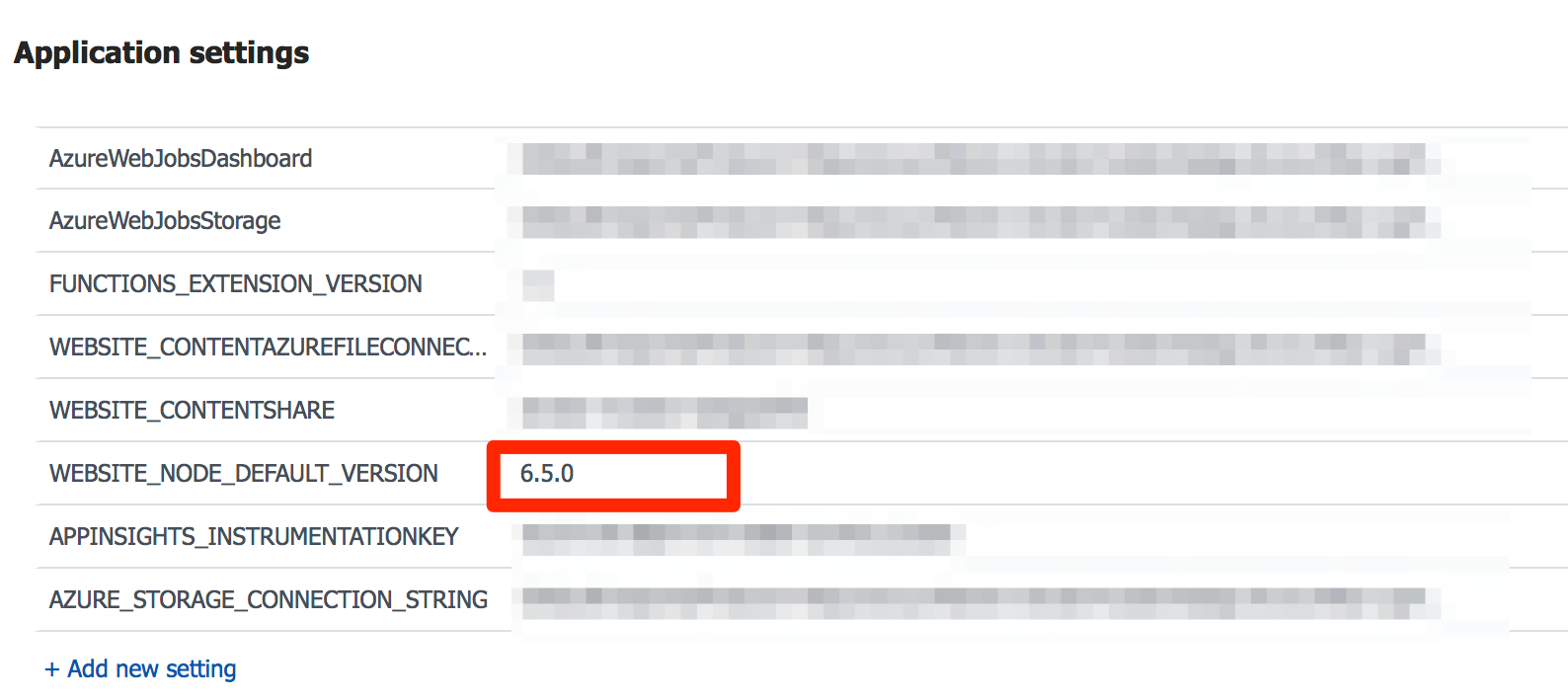
<h3 id="Azure-and-NodeJS"><a href="#Azure-and-NodeJS" class="headerlink" title="Azure and NodeJS"></a>Azure and NodeJS</h3><p>We soon discovered that uploading a lot of small files to Azure would take a while, and we decided we’d just want to upload the package.json and run npm install on Azure <a href="https://docs.microsoft.com/en-us/azure/azure-functions/functions-reference-node#node-version-and-package-management" target="_blank" rel="noopener">through Kudu</a>. Notice that on this page it also says that the Node version is locked on 6.5.0. Even adjusting the WEBSITE_NODE_DEFAULT_VERSION environment variable didn’t work.</p>
<img src="/2018/03/04/creating-a-github-badge-with-azure-functions/app-settings.png" title="Adjusting the environment variable"> 
<p>This limited us in our ability to use certain Node functionality that required version 8+ (util.promisify in particular) so we went to look for another solution. This present itself in the portal. If you look carefully at the screenshot above, you can see a variable called FUNCTIONS_EXTENSION_RUNTIME. This is set to ~1 by default, but you can simply change that to run on the ‘beta’ version. <em>Mind you</em>: you can only safely change this if you don’t currently have any functions deployed.</p>
<p>Unfortunately, it turned out that changing this to the beta <a href="https://github.com/Azure/app-service-announcements/issues/68" target="_blank" rel="noopener">doesn’t support proxies yet</a>, so we reverted and included our own promisify.</p>
<h3 id="Cold-Boot"><a href="#Cold-Boot" class="headerlink" title="Cold Boot"></a>Cold Boot</h3><p>As mentioned before, we initially planned on deploying through Kudu and simply running NPM install there and we did. Thing is, the functions were really slow. I mean… REALLY slow. It took over 20 seconds to start and as it turns out, <a href="https://github.com/Azure/azure-functions-host/issues/298" target="_blank" rel="noopener">we weren’t the only ones</a>. Our solution was to apply FuncPack and by simply running this before our publish:</p>
<figure class="highlight javascript"><table><tr><td class="gutter"><pre><span class="line">1</span><br><span class="line">2</span><br></pre></td><td class="code"><pre><span class="line">npm install -g azure-functions-pack</span><br><span class="line">funcpack pack ./</span><br></pre></td></tr></table></figure>
<p>we were able to pack it all into one file. What it does is that it applies <a href="https://www.npmjs.com/package/webpack" target="_blank" rel="noopener">WebPack</a> magic to your function (also rewriting your function.json to reference to index.js as entrypoint). Running this brought our cold boot down to acceptable levels.</p>
<h2 id="What-now"><a href="#What-now" class="headerlink" title="What now?"></a>What now?</h2><p>Well, we’re live :) There’s still some work to do by the functions team, but with the newly announced <a href="https://github.com/Azure/app-service-announcements/issues/84" target="_blank" rel="noopener">Run-From-Zip</a> functionality, I’m positive that it’ll run even smoother than now. On top of that, we now also know what it has cost us over the month of February: a whopping $0.33 :-) So I guess this still applies:</p>
<img src="/2018/03/04/creating-a-github-badge-with-azure-functions/microsoft-lt3-oss.png" title="Microsoft loves Open Source">
<p>Or at least they make it pretty easy for Open Source projects to use their services without incurring too much of a cost penalty. I’ll follow up on this post to describe how we wrapped this all up in a neat VSTS pipeline to deploy continuously.</p>
]]></content>
    
    <summary type="html">
    
      &lt;p&gt;Recently, I spent some time with the guys from the &lt;a href=&quot;https://stryker-mutator.io&quot; target=&quot;_blank&quot; rel=&quot;noopener&quot;&gt;Stryker Mutator&lt;/a
    
    </summary>
    
      <category term="Cloud" scheme="https://toonen.io/categories/Cloud/"/>
    
    
      <category term="OpenSource" scheme="https://toonen.io/tags/OpenSource/"/>
    
      <category term="Cloud" scheme="https://toonen.io/tags/Cloud/"/>
    
      <category term="Stryker" scheme="https://toonen.io/tags/Stryker/"/>
    
  </entry>
  
  <entry>
    <title>Running Docker 17.10 on Windows Server 1709 without nested virtualization</title>
    <link href="https://toonen.io/2018/02/26/running-docker-17-10-on-windows-server-2017-without-nested-virtualization/"/>
    <id>https://toonen.io/2018/02/26/running-docker-17-10-on-windows-server-2017-without-nested-virtualization/</id>
    <published>2018-02-26T11:01:29.000Z</published>
    <updated>2018-02-27T21:07:43.000Z</updated>
    
    <content type="html"><![CDATA[<p>Although some people have overheard me saying that <a href="https://www.youtube.com/watch?v=d2J7GvFdaGE" target="_blank" rel="noopener">Containers are Dead</a>, there is actually some use for it when dealing with legacy software and/or on-premise/cloud hybrid applications.<br>Recently, during a hackathon, I tried to use Docker Swarm’s awesome <a href="https://docs.docker.com/engine/swarm/ingress/" target="_blank" rel="noopener">Routing Mesh</a> but couldn’t get it to work on Windows Server 2016. It turns out that it will only work on Windows Server 1709.</p>
<h1 id="Installing-Docker-EE-Preview"><a href="#Installing-Docker-EE-Preview" class="headerlink" title="Installing Docker EE Preview"></a>Installing Docker EE Preview</h1><p>Since it was a hackathon anyway, I figured I might as well try to roll Windows Server 1709 (this is the new semi-annual release channel by the way) on a VM and I followed the instructions to <a href="https://docs.docker.com/install/windows/docker-ee/" target="_blank" rel="noopener">install Docker</a> on it. But… it still didn’t work. Turns out, I needed <a href="https://blog.docker.com/2017/09/docker-windows-server-1709/" target="_blank" rel="noopener">different instructions</a> and the preview. But for some reason it wouldn’t install! It told me I needed to install the Hyper-V feature:</p>
<img src="/2018/02/26/running-docker-17-10-on-windows-server-2017-without-nested-virtualization/hyperv-feature.png" title="Missing Hyper-V feature"> 
<h1 id="Forcing-it-to-run-anyway"><a href="#Forcing-it-to-run-anyway" class="headerlink" title="Forcing it to run anyway"></a>Forcing it to run anyway</h1><p>Using the following piece of Powershell, it’s quite easy to get it to work anyway. This does assume you followed the <a href="https://docs.docker.com/install/windows/docker-ee/" target="_blank" rel="noopener">‘normal’</a> installation instructions first though.</p>
<figure class="highlight powershell"><table><tr><td class="gutter"><pre><span class="line">1</span><br><span class="line">2</span><br><span class="line">3</span><br><span class="line">4</span><br><span class="line">5</span><br><span class="line">6</span><br><span class="line">7</span><br><span class="line">8</span><br><span class="line">9</span><br><span class="line">10</span><br><span class="line">11</span><br><span class="line">12</span><br><span class="line">13</span><br><span class="line">14</span><br><span class="line">15</span><br><span class="line">16</span><br><span class="line">17</span><br><span class="line">18</span><br><span class="line">19</span><br><span class="line">20</span><br></pre></td><td class="code"><pre><span class="line"><span class="comment"># Stop Docker</span></span><br><span class="line"><span class="built_in">Stop-Service</span> Docker</span><br><span class="line"></span><br><span class="line"><span class="comment"># Get Docker</span></span><br><span class="line">Save-package -providername DockerProvider -Name Docker -RequiredVersion Preview -Path <span class="variable">$Env:TEMP</span></span><br><span class="line"></span><br><span class="line"><span class="variable">$dockerZipPath</span> = (<span class="built_in">Resolve-Path</span> <span class="variable">$Env:TEMP</span>\Docker*.zip)</span><br><span class="line">Expand-archive <span class="variable">$dockerZipPath</span> <span class="variable">$Env:TEMP</span>\Docker</span><br><span class="line"></span><br><span class="line"><span class="comment"># Move to correct location</span></span><br><span class="line"><span class="built_in">Move-Item</span> <span class="variable">$Env:TEMP</span>\Docker\docker\dockerd.exe <span class="string">"<span class="variable">$Env:ProgramFiles</span>\Docker"</span> -force</span><br><span class="line"><span class="built_in">Move-Item</span> <span class="variable">$Env:TEMP</span>\Docker\docker\docker.exe <span class="string">"<span class="variable">$Env:ProgramFiles</span>\Docker"</span> -force</span><br><span class="line"></span><br><span class="line"><span class="comment"># Disable Linux containers</span></span><br><span class="line">[Environment]::SetEnvironmentVariable(<span class="string">"LCOW_SUPPORTED"</span>, <span class="literal">$null</span>, <span class="string">"Machine"</span>)</span><br><span class="line"><span class="built_in">Start-Service</span> Docker</span><br><span class="line"></span><br><span class="line"><span class="comment"># Cleanup</span></span><br><span class="line"><span class="built_in">Remove-Item</span> <span class="variable">$dockerZipPath</span> -Force</span><br><span class="line"><span class="built_in">Remove-Item</span> <span class="variable">$Env:TEMP</span>\Docker -Recurse -Force</span><br></pre></td></tr></table></figure>
<p>The LCOW_SUPPORTED environment variable makes sure you won’t accidently try to run a Linux container anyway :-) O, did I forget to mention that? Docker 17.10 adds <a href="https://blog.docker.com/2017/09/preview-linux-containers-on-windows/" target="_blank" rel="noopener">support for Linux containers on Windows Server through LinuxKit</a>.</p>
]]></content>
    
    <summary type="html">
    
      &lt;p&gt;Although some people have overheard me saying that &lt;a href=&quot;https://www.youtube.com/watch?v=d2J7GvFdaGE&quot; target=&quot;_blank&quot; rel=&quot;noopener&quot;&gt;C
    
    </summary>
    
      <category term="Containers" scheme="https://toonen.io/categories/Containers/"/>
    
    
      <category term="Containers" scheme="https://toonen.io/tags/Containers/"/>
    
      <category term="Servers" scheme="https://toonen.io/tags/Servers/"/>
    
  </entry>
  
  <entry>
    <title>Continuous Delivery of Azure Functions with TFS</title>
    <link href="https://toonen.io/2017/02/24/continuous-delivery-of-azure-functions-with-tfs/"/>
    <id>https://toonen.io/2017/02/24/continuous-delivery-of-azure-functions-with-tfs/</id>
    <published>2017-02-24T18:03:23.000Z</published>
    <updated>2017-02-24T21:57:47.000Z</updated>
    
    <content type="html"><![CDATA[<p>In my previous post (<a href="/2017/02/08/azure-functions-put-to-use/" title="Going Serverless - Azure Functions put to use">Going Serverless - Azure Functions put to use</a>), I showed you how to create a simple serverless app that did some basic alerting based on events on an Azure Service Bus. Now although this example did show you how to create the function and successfully run it, it didn’t show you how to do it <em>properly</em>: by rubbing some DevOps on it.</p>
<p>The code I used before was simple enough to maintain but I can imagine you would want to use Visual Studio to develop your functions. Luckily <a href="https://blogs.msdn.microsoft.com/webdev/2016/12/01/visual-studio-tools-for-azure-functions/" target="_blank" rel="noopener">there’s an extension for that</a>. After you’ve installed the extension (make sure to get the updated one and heed the prerequisites), you will be able to create a new Function App quite easily and although it’s not as complete as the docker integration (yet), you <em>can</em> use it to deploy your functions using web deploy rather than the <a href="https://docs.microsoft.com/en-us/azure/app-service-web/app-service-continuous-deployment" target="_blank" rel="noopener">source control integration</a> from the portal. </p>
<h1 id="Creating-the-App"><a href="#Creating-the-App" class="headerlink" title="Creating the App"></a>Creating the App</h1><p>In Visual Studio create a new solution using the wizard by selecting the (C# -&gt; ) ‘Cloud’ -&gt; ‘Azure Functions’ project type. You will see a project structure very similar to what you’re used to from other project types. It will feature a few files:</p>
<ul>
<li><code>host.json</code> - contains <a href="https://github.com/Azure/azure-webjobs-sdk-script/wiki/host.json" target="_blank" rel="noopener">global config</a> for all the functions within your project.</li>
<li><code>appsettings.json</code> - this is pretty self-explanatory, right?</li>
<li><code>ProjectReadme.html</code> - you can safely remove this.</li>
</ul>
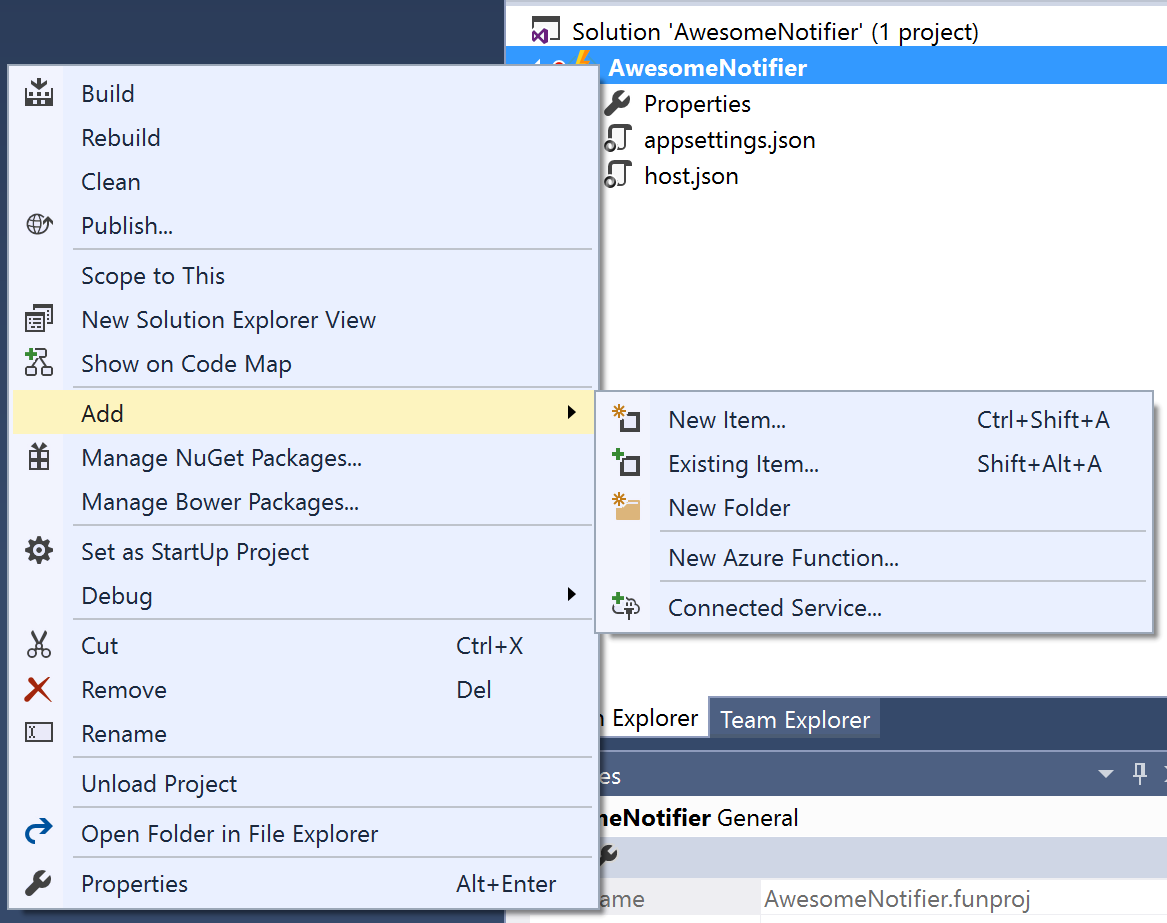
<p>Now as you may have noticed, there’s no actual function yet. You still have to add it by right-clicking the project-node and selecting the ‘Add’ -&gt; ‘New Azure Function’ option.</p>
<img src="/2017/02/24/continuous-delivery-of-azure-functions-with-tfs/add-new-azure-function.png" title="Add new Azure Function"> 
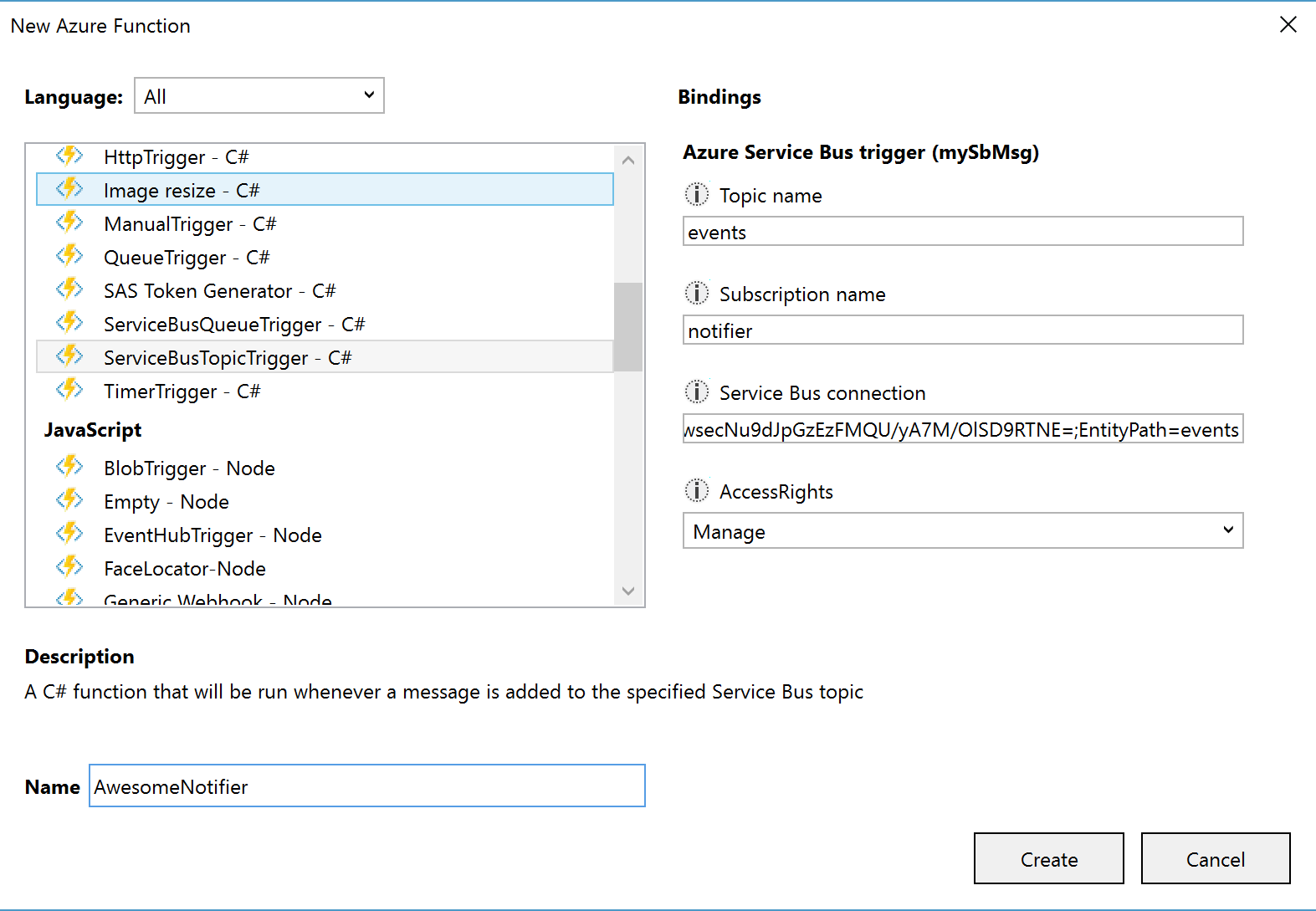
<p>Pick the ‘ServiceBusTopicTrigger - C#’ type and enter the parameters like before. </p>
<img src="/2017/02/24/continuous-delivery-of-azure-functions-with-tfs/all-parameters-added.png" title="Parameters Added"> 
<p>You will notice that after creating the functions, you’ll end up with what we have before, including the <code>project.json</code> we had to manually create in the portal. That also means we can just reuse the code from before :-) Take a look at your function.json file and notice that it has a green squiggly underneath the manage permissions (which we have to use, <a href="https://github.com/Azure/azure-webjobs-sdk-script/issues/1048" target="_blank" rel="noopener">remember</a>?), I didn’t actually test it with the capital ‘M’ there, but I changed it to ‘manage’ before publishing. Let me know if you do try and succeed!<br>Unfortunately, Visual Studio doesn’t understand this project type completely just yet, so adding NuGet packages is a manual process. You’ll also notice that IntelliSense is limited, it’ll work just fine if you’re using the assemblies which you get out-of-the-box, but if you use external references, I have found it to be lacking.</p>
<h1 id="Why-use-Visual-Studio-at-all"><a href="#Why-use-Visual-Studio-at-all" class="headerlink" title="Why use Visual Studio at all?"></a>Why use Visual Studio at all?</h1><p>By now you might be wondering what the advantage of using Visual Studio is over just creating a function in the portal. Well, there are several reasons:</p>
<ul>
<li>You might want to store your sources in source control and you’re using TFS - which is not supported in the portal.</li>
<li>You might want to create more complex solutions, where you share code over functions for instance. You can do this by adding an empty function and loading it in another by using the <code>#load &quot;..\shared\shared.csx&quot;</code> directive at the top of your file (below the <code>#R</code> directives).</li>
<li>You can debug your functions. The first time you’ll try this, you will be prompted to download the Azure Functions CLI.</li>
</ul>
<p>So read on if you want to see how to deploy this from source control.</p>
<h1 id="TFS"><a href="#TFS" class="headerlink" title="TFS"></a>TFS</h1><p>I want my release to inject some variables using <a href="https://github.com/qetza/vsts-replacetokens-task#readme" target="_blank" rel="noopener">Guillaume’s replace token build task</a>, then package and publish it. Seeing as a function isn’t really something that you’ll build, it’s rather strange that you’ll need a build to feed your release definition, so you might consider a build definition which directly deploys your function to an Azure Web Application, this won’t allow you to use environments though and because functions don’t support application slots yet, I like using a staging environment before going to production. Whichever way you’ll go, you will have to know that a web deploy is the only possible way to deliver your function to the cloud now.<br>I will assume that you have created a web application and/or build definition before, so I won’t go into that and assume that it’s all in place.</p>
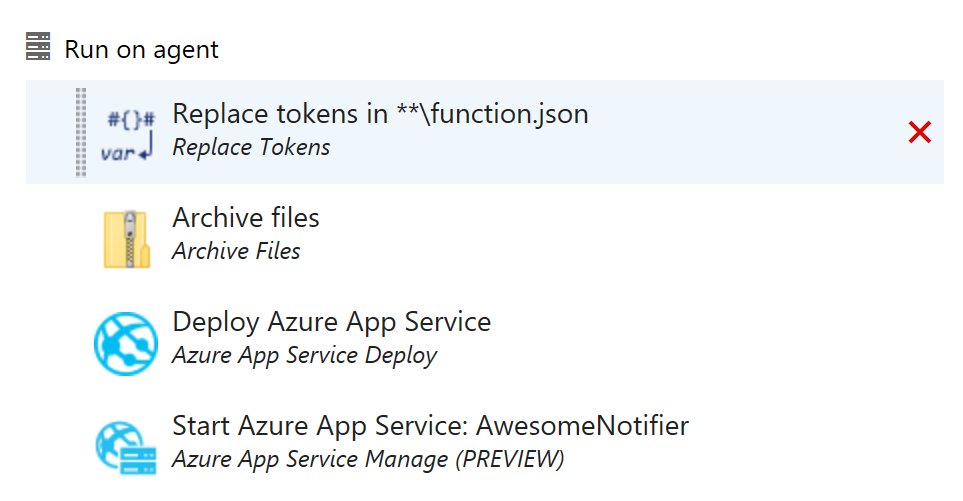
<p>My build simply copies all files to a file container on the server, nothing special there. My release definition contains 4 steps per environment:</p>
<ul>
<li>Replace Tokens: replaces all tokens with the correct servicebus topics, the email address, etc.</li>
<li>Archive Files: zip the <code>$(System.DefaultWorkingDirectory)/AwesomeNotifier/AwesomeNotifier</code> folder and create a zip-file with <code>$(System.DefaultWorkingDirectory)/package.zip</code> as name.</li>
<li>Deploy Azure App Service: select your subscription, the app name and tell it which package to use (<code>$(System.DefaultWorkingDirectory)/package.zip</code> in our case).</li>
<li>Azure App Service Manage: select your subscription, select the start method, and select the application.</li>
</ul>
<img src="/2017/02/24/continuous-delivery-of-azure-functions-with-tfs/4-step-release-definition.png" title="Finished Release Definition"> 
<p>Now if you set the trigger of your build to Continuous Integration and automatically create a release and deploy your (test) environment after a succesful build, you’ll have created a working continuous delivery pipeline to update your Azure Function using Visual Studio and TFS. Good luck! </p>
]]></content>
    
    <summary type="html">
    
      &lt;p&gt;In my previous post (&lt;a href=&quot;/2017/02/08/azure-functions-put-to-use/&quot; title=&quot;Going Serverless - Azure Functions put to use&quot;&gt;Going Server
    
    </summary>
    
      <category term="DevOps" scheme="https://toonen.io/categories/DevOps/"/>
    
    
      <category term="DevOps" scheme="https://toonen.io/tags/DevOps/"/>
    
      <category term="Azure" scheme="https://toonen.io/tags/Azure/"/>
    
      <category term="Serverless" scheme="https://toonen.io/tags/Serverless/"/>
    
      <category term="Continuous Delivery" scheme="https://toonen.io/tags/Continuous-Delivery/"/>
    
      <category term="TFS" scheme="https://toonen.io/tags/TFS/"/>
    
  </entry>
  
  <entry>
    <title>Going Serverless - Azure Functions put to use</title>
    <link href="https://toonen.io/2017/02/08/azure-functions-put-to-use/"/>
    <id>https://toonen.io/2017/02/08/azure-functions-put-to-use/</id>
    <published>2017-02-08T20:16:27.000Z</published>
    <updated>2017-02-11T11:43:13.000Z</updated>
    
    <content type="html"><![CDATA[<p>We run an application which is event-driven and utilizes microservices across several trust boundaries. The application originated from our ‘automate everything you do more than twice’-mantra and is now continuously evolving and making our live as a small DevOps team easier.</p>
<p>The underlying messaging mechanism of our app is an Azure Service Bus (or actually, multiple buses), with several topics and subscriptions upon those topics. As all of our events flow through Azure already, it’s easy to store them in blobstorage and use them for auditing/analysis/what-have-you at a later point in time. Now that the usage is increasing, we felt that it was time to add some alerting and we made plans for a new service that would react to our ‘ActivityFailed’-event, it would then send an email as soon as one of those events (luckily they don’t occur that often) would occur. Sounds easy enough, right?</p>
<h1 id="Dockerize-or-…"><a href="#Dockerize-or-…" class="headerlink" title="Dockerize or … ?"></a>Dockerize or … ?</h1><p>As you may know Docker is a great tool to envelope your application into a well-known and well-described format so that it can run anywhere the same as it would on your machine. We would develop the service in .NET Core, so it would be easy enough to Dockerize it and host it somewhere just like some of the other services. But last night I thought to myself ‘Wait, we run in Azure, use the Azure Service Bus and only need to react to messages on the bus..’ and I decided I would try to create an <a href="https://azure.microsoft.com/en-us/services/functions/" target="_blank" rel="noopener">Azure Function</a> to react to the event and send me the mail. It literally took me about 15 minutes to develop. I’ll describe the process below.</p>
<h2 id="Going-serverless"><a href="#Going-serverless" class="headerlink" title="Going serverless"></a>Going serverless</h2><p>Azure Functions are a way to process events in an easy way without having to worry about where you run it. It’s basically ‘just code’ and Azure does the rest for you. I had played with Azure Functions before, but didn’t really find a use-case for it. I do however feel that they are the next step after containerization. It may not fit all problems, but there are certainly use-cases out there which would benefit from a completely serverless architecture.</p>
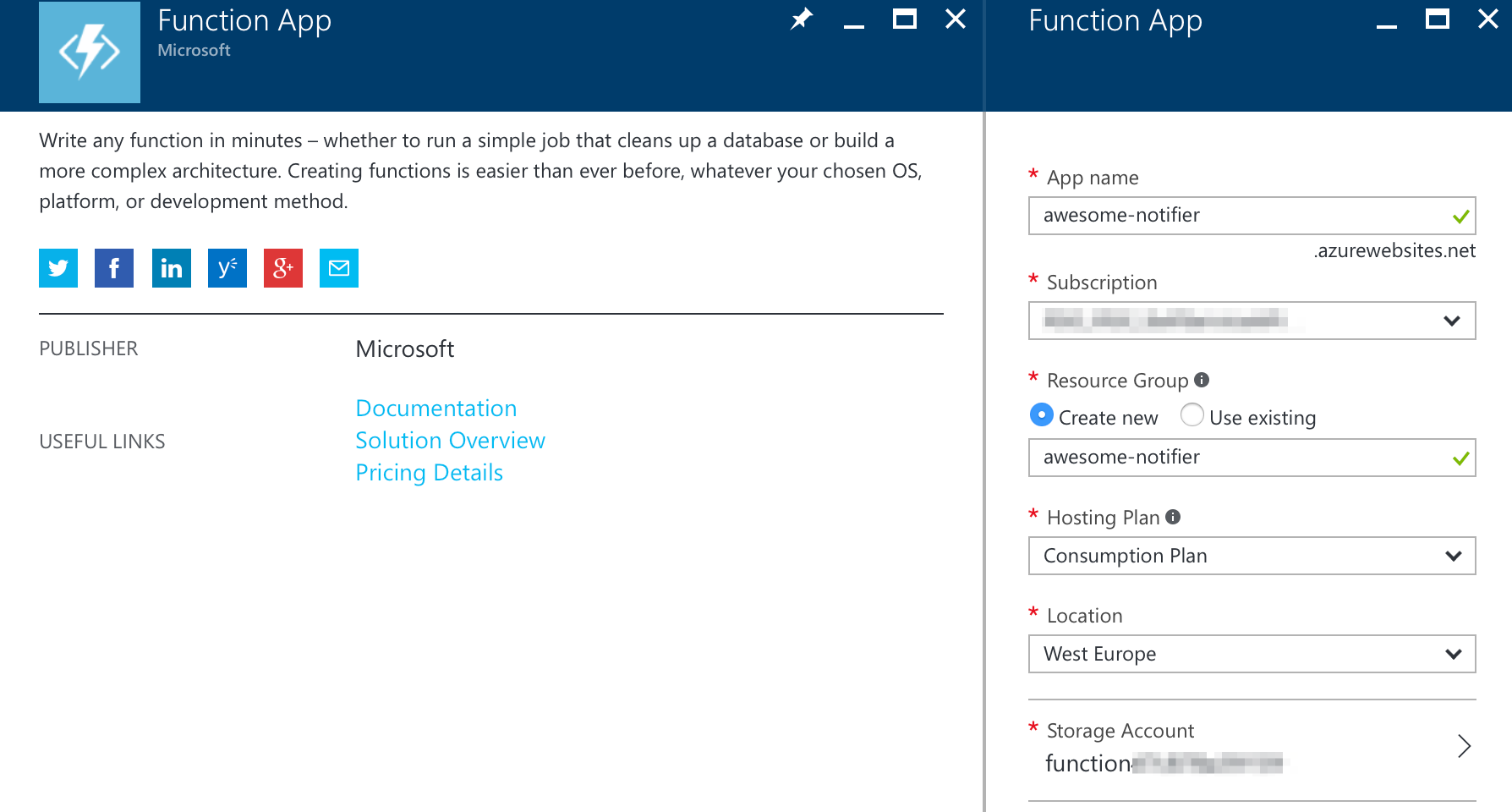
<p>Step one is going to the <a href="https://portal.azure.com" target="_blank" rel="noopener">Azure Portal</a> and creating a new ‘Function App’. Tip: use a consumption plan if you only want to be billed for your actual usage.</p>
<img src="/2017/02/08/azure-functions-put-to-use/create-function-app.png" title="Creating the Function App"> 
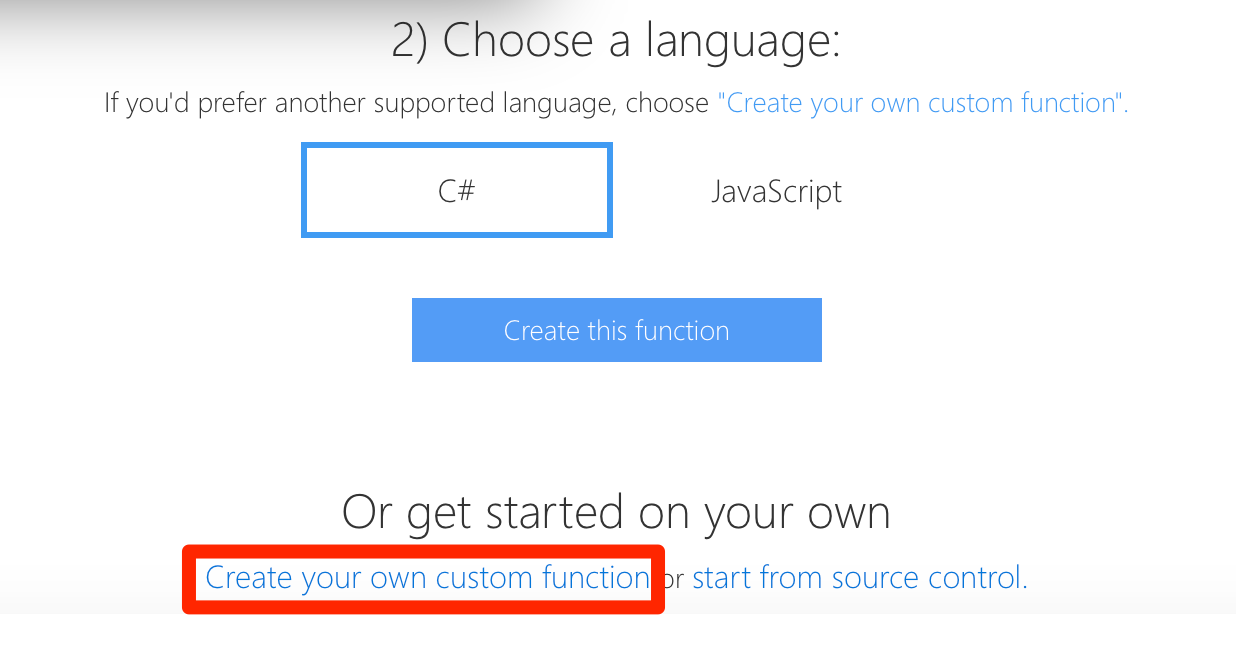
<p>Once your Function App is created, navigate to it. The first time you navigate to your Function App, you won’t have any functions yet, so you will be presented with the Quickstart Wizard. We will not use it, so scroll down and click ‘Create your own custom function’.</p>
<img src="/2017/02/08/azure-functions-put-to-use/create-your-own-function.png" title="Create your own custom function"> 
<p>Now from the template gallery, select C# as language and ‘Data Processing’ as scenario. Click the ‘ServiceBusTopicTrigger-CSharp’ template and enter the following values in the corresponding fields:</p>
<ul>
<li><strong>Name</strong>: a meaningful name for your function, pick something like ‘EmailNotifier’</li>
<li><strong>Topic name</strong>: this is the name of the topic on your service bus which you’ll listen to</li>
<li><strong>Subscription name</strong>: The subscription name on top of the topic specified above</li>
<li><strong>Access Rights</strong>: select ‘Manage’, and make this match the <a href="https://docs.microsoft.com/en-us/azure/service-bus-messaging/service-bus-shared-access-signature-authentication" target="_blank" rel="noopener">SAS Token</a>. As of writing this post, there’s a <a href="https://github.com/Azure/azure-webjobs-sdk-script/issues/1048" target="_blank" rel="noopener">bug</a> preventing you from using the expected ‘Listen’ permissions. That is - you can use it, but your function will cease to trigger after a few hours.</li>
<li><strong>Service Bus connection</strong>: Service Bus connection strings are saved as Application Setting for your entire Function App and can be shared over multiple functions. Just click ‘new’ the first time and enter the connection string <em>without</em> the EntityPath in it</li>
</ul>
<p>You will now have a basic function. Congratulations!</p>
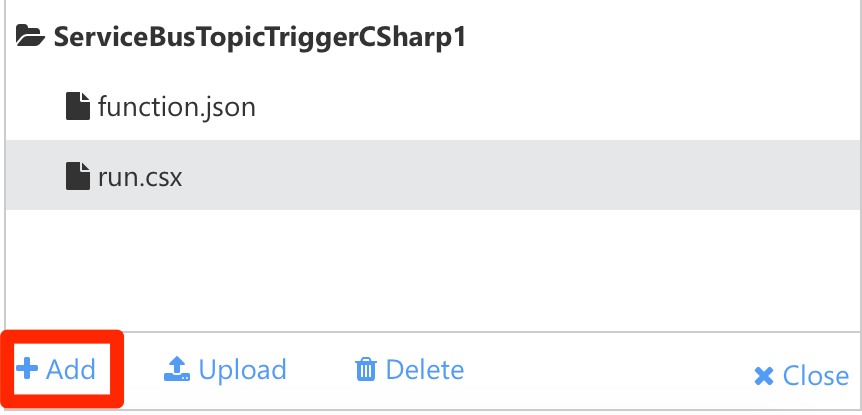
<h2 id="Making-it-do-something-useful"><a href="#Making-it-do-something-useful" class="headerlink" title="Making it do something useful"></a>Making it do something useful</h2><p>In order to do something meaningful with our app, we’ll need to go through a few steps. First let’s discover what is created for us. Click the ‘Files’ button on the top right of the editor:</p>
<img src="/2017/02/08/azure-functions-put-to-use/your-first-function.png" title="Exploring your first function"> 
<p>You will see that you have two files:</p>
<ul>
<li>function.json - which describes your in- and outputs</li>
<li>run.csx - which is the code for your function</li>
</ul>
<p>Take some time to familiarize you with both files and notice that the run.csx isn’t much different from a regular C# program.</p>
<p>It actually has using statements and a <code>public static void Main()</code> alike function called ‘Run’. Azure Functions provides you with framework libraries such as System and System.Linq and you can include some additional assemblies using the <code>#r</code> directive. A full list of all available assemblies can be found <a href="https://docs.microsoft.com/en-us/azure/azure-functions/functions-reference-csharp#importing-namespaces" target="_blank" rel="noopener">here</a>. As you can see, using all types/methods within the Microsoft.ServiceBus namespace will be easy. I can just add a the following lines of code to the beginning of run.csx:</p>
<figure class="highlight plain"><table><tr><td class="gutter"><pre><span class="line">1</span><br><span class="line">2</span><br><span class="line">3</span><br></pre></td><td class="code"><pre><span class="line">#r &quot;Microsoft.ServiceBus&quot;</span><br><span class="line"></span><br><span class="line">using Microsoft.Servicebus;</span><br></pre></td></tr></table></figure>
<p>I also will be using Newtonsoft.Json to deserialize my messages and SendGrid to send my emails, so I will need some way to restore the NuGet packages. This turns out to be quite easy. I just have to add a new file and tell my function what my dependencies are. Add a file called <code>project.json</code> to your function like so:</p>
<img src="/2017/02/08/azure-functions-put-to-use/add-file-to-function.png" title="Adding a file"> 
<p>Now add the following code to it:</p>
<figure class="highlight plain"><table><tr><td class="gutter"><pre><span class="line">1</span><br><span class="line">2</span><br><span class="line">3</span><br><span class="line">4</span><br><span class="line">5</span><br><span class="line">6</span><br><span class="line">7</span><br><span class="line">8</span><br><span class="line">9</span><br><span class="line">10</span><br></pre></td><td class="code"><pre><span class="line">&#123;</span><br><span class="line">  &quot;frameworks&quot;: &#123;</span><br><span class="line">    &quot;net46&quot;:&#123;</span><br><span class="line">      &quot;dependencies&quot;: &#123;</span><br><span class="line">        &quot;Sendgrid&quot;: &quot;8.0.5&quot;,</span><br><span class="line">        &quot;Newtonsoft.Json&quot;: &quot;9.0.1&quot;</span><br><span class="line">      &#125;</span><br><span class="line">    &#125;</span><br><span class="line">  &#125;</span><br><span class="line">&#125;</span><br></pre></td></tr></table></figure>
<p>This will trigger my function to perform a NuGet restore before executing my function for the first time. Don’t forget to add the using statements to your code.</p>
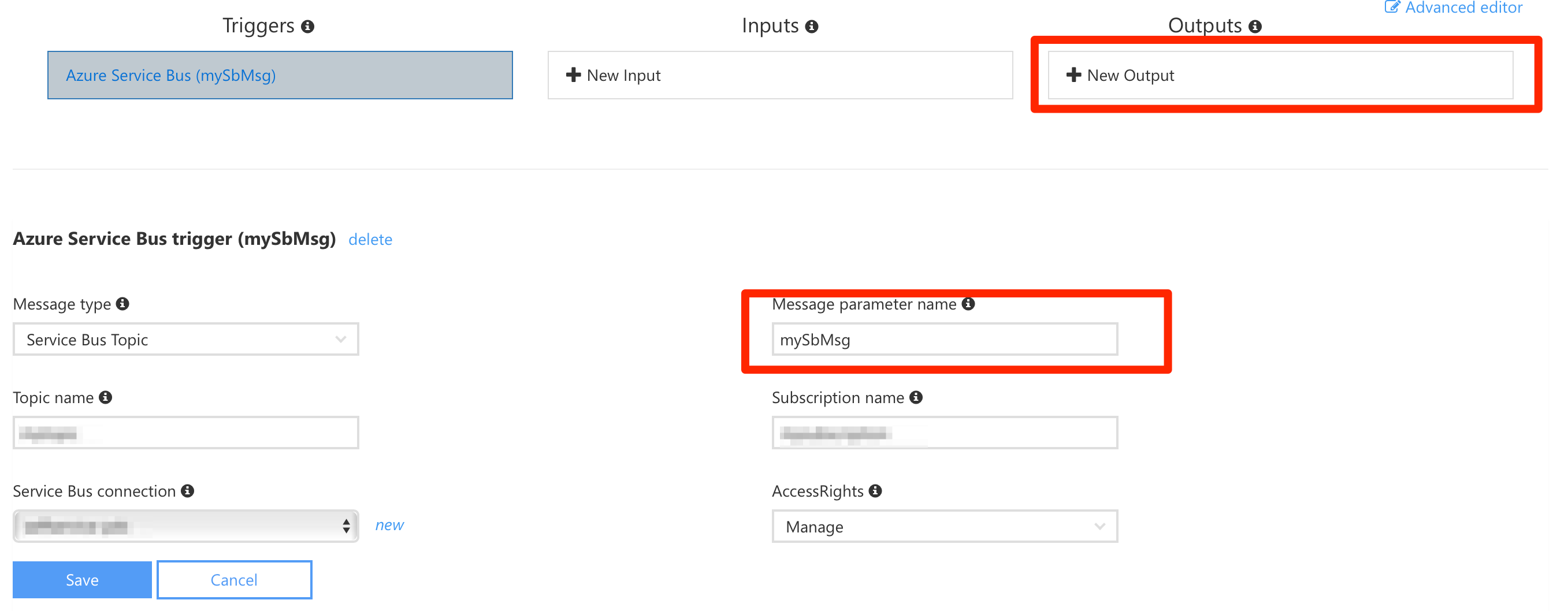
<p>We’re almost ready to get the code done but first we’ll need to add an output to our function. Head to the ‘Integrate’ section of your function and take note of the ‘Message parameter name’, we will use this later on. Now click ‘New Output’ and select ‘SendGrid’ (currently in preview).</p>
<img src="/2017/02/08/azure-functions-put-to-use/integrate-tab.png" title="Integrate"> 
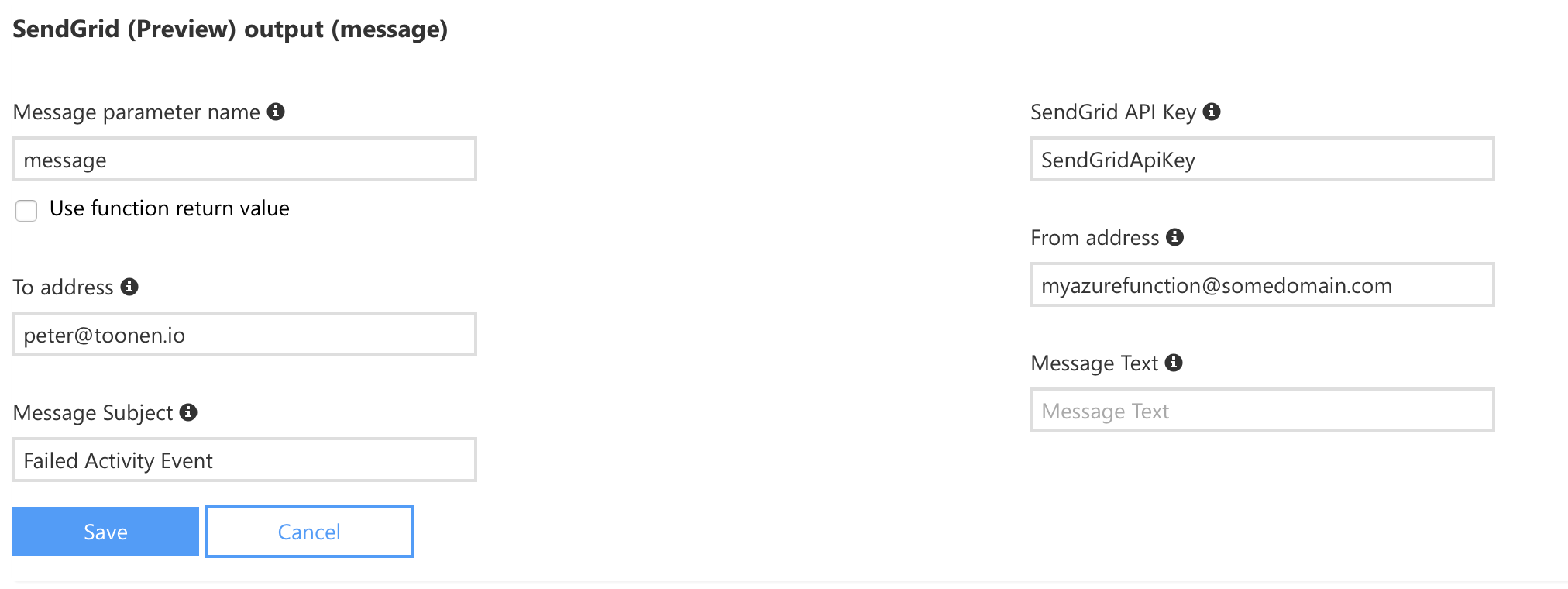
<p>The easiest way to utilize this output, is to enter the from, to, subject and API key here. Mind you that the API key is the name of an Application Setting which contains the actual key! </p>
<img src="/2017/02/08/azure-functions-put-to-use/sendgrid-config.png" title="Configure SendGrid"> 
<p>Save the changes and then add the Application Setting corresponding to the API key name (SendGridApiKey in this example) by clicking ‘Function App Settings’ and then ‘Configure app setings’<br>Once you’ve added the input, take a look at your <code>function.json</code> and see how it reflects the changes. </p>
<p>Finally adjust the code for run.csx to reflect your application logic. Notice how I named the ‘Message parameter name’ incomingMessage and added an <code>out Mail message</code> to the method signature:</p>
<figure class="highlight plain"><table><tr><td class="gutter"><pre><span class="line">1</span><br><span class="line">2</span><br><span class="line">3</span><br><span class="line">4</span><br><span class="line">5</span><br><span class="line">6</span><br><span class="line">7</span><br><span class="line">8</span><br><span class="line">9</span><br><span class="line">10</span><br><span class="line">11</span><br><span class="line">12</span><br><span class="line">13</span><br><span class="line">14</span><br><span class="line">15</span><br><span class="line">16</span><br><span class="line">17</span><br><span class="line">18</span><br><span class="line">19</span><br><span class="line">20</span><br><span class="line">21</span><br><span class="line">22</span><br><span class="line">23</span><br><span class="line">24</span><br><span class="line">25</span><br><span class="line">26</span><br><span class="line">27</span><br><span class="line">28</span><br></pre></td><td class="code"><pre><span class="line">#r &quot;SendGrid&quot;</span><br><span class="line">#r &quot;Newtonsoft.Json&quot;</span><br><span class="line">#r &quot;Microsoft.ServiceBus&quot;</span><br><span class="line"></span><br><span class="line">using SendGrid.Helpers.Mail;</span><br><span class="line">using Newtonsoft.Json;</span><br><span class="line">using System;</span><br><span class="line">using System.Threading.Tasks;</span><br><span class="line">using Microsoft.ServiceBus.Messaging;</span><br><span class="line"></span><br><span class="line">public static void Run(BrokeredMessage incomingMessage, TraceWriter log, out Mail message)</span><br><span class="line">&#123;</span><br><span class="line">    message = null; // set output to null, it must be set as it is a mandatory out parameter</span><br><span class="line">    </span><br><span class="line">    var msgBody = incomingMessage.GetBody&lt;string&gt;();</span><br><span class="line">    var msg = JsonConvert.DeserializeObject&lt;dynamic&gt;(msgBody);</span><br><span class="line">    </span><br><span class="line">    log.Info($&quot;Event type: &#123;msg.messageType&#125;&quot;);</span><br><span class="line"></span><br><span class="line">    if(msg.messageType == &quot;activityFailed&quot;) &#123;</span><br><span class="line">         log.Info($&quot;Found a failed activity: &#123;msg.processId&#125;&quot;);</span><br><span class="line"></span><br><span class="line">         message = new Mail();</span><br><span class="line"></span><br><span class="line">         var messageContent = new Content(&quot;text/html&quot;, $&quot;Activity Failed: &#123;msg.processId&#125;&quot;);</span><br><span class="line">         message.AddContent(messageContent);</span><br><span class="line">    &#125;</span><br><span class="line">&#125;</span><br></pre></td></tr></table></figure>
<p>That’s it. Click Run and your message will be parsed, checked and you will be alerted in case something goes wrong :-)</p>
<h1 id="The-result"><a href="#The-result" class="headerlink" title="The result"></a>The result</h1><p>I’ve already received my first alert - even though I triggered it intentionally, it’s still awesome to see that I now have a low-cost, easy to use solution which only runs when it should. Of course there optimizations to be made, but for now it does the trick. And in the meanwhile I’ve learned some more about building serverless applications using Azure Functions.</p>
]]></content>
    
    <summary type="html">
    
      &lt;p&gt;We run an application which is event-driven and utilizes microservices across several trust boundaries. The application originated from o
    
    </summary>
    
      <category term="Cloud" scheme="https://toonen.io/categories/Cloud/"/>
    
    
      <category term="Azure" scheme="https://toonen.io/tags/Azure/"/>
    
      <category term="Serverless" scheme="https://toonen.io/tags/Serverless/"/>
    
  </entry>
  
  <entry>
    <title>Git in VS2017 with self-signed SSL</title>
    <link href="https://toonen.io/2016/11/28/git-in-vs2017-with-self-signed-ssl/"/>
    <id>https://toonen.io/2016/11/28/git-in-vs2017-with-self-signed-ssl/</id>
    <published>2016-11-28T11:00:47.000Z</published>
    <updated>2017-02-08T22:53:51.000Z</updated>
    
    <content type="html"><![CDATA[<p>When I’m out of the office, I connect to my team’s TFS server through the firewall and get served up with a properly signed (by a widely trusted CA) SSL certificate.<br>This means that my browser, and git have no issues connecting and cloning. When I’m in the office <em>and</em> connected to our corporate WiFi network, I get a self-signed SSL certificate. </p>
<p>It’s always been a hassle to add these certificates to Git’s local certificate store but luckily Visual Studio didn’t require you to do the same, seeing as they used Lib2Git. With VS2017, Microsoft switched to git.exe (which is good) <strong>but</strong> they aren’t using the one already on your path but rather a bundled installation which resides in the VS2017 extensions directory. This means that you have to add SSL certificates to yet another git trusted store.</p>
<h2 id="Let’s-fix"><a href="#Let’s-fix" class="headerlink" title="Let’s fix"></a>Let’s fix</h2><p>Microsoft has done a <a href="terrific write-up">https://blogs.msdn.microsoft.com/phkelley/2014/01/20/adding-a-corporate-or-self-signed-certificate-authority-to-git-exes-store/</a> of how to add a certificates should be added to your git.exe client and now this must be applied to Visual Studio as well to prevent this from happening:</p>
<img src="/2016/11/28/git-in-vs2017-with-self-signed-ssl/git-clone-error-untrusted-cert.png" title="Error cloning with untrusted certificate">
<p>The Git client resides in your VS2017 installation dir, which by default is <code>C:\Program Files (x86)\Microsoft Visual Studio\2017\</code>. Now if you browse to your edition (i.e. ‘Enterprise’), you will see the familiar <code>Common7\IDE</code> directory and then to the <code>CommonExtensions\Microsoft\TeamFoundation\Team Explorer\Git\mingw32\ssl\certs</code> folder, you will find the ca-bundle.crt that Visual Studio uses. So the full path (for a default installation of VS2017 Enterprise) would be:</p>
<p><code>C:\Program Files (x86)\Microsoft Visual Studio\2017\Enterprise\Common7\IDE\CommonExtensions\Microsoft\TeamFoundation\Team Explorer\Git\mingw32\ssl\certs</code></p>
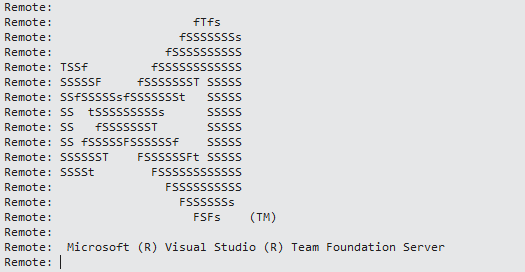
<p>Add your Base64 encoded certificate and the next time you attempt to clone a repo within VS2017, you should be presented with the trusted VS logo ASCII art from TFS:</p>
<img src="/2016/11/28/git-in-vs2017-with-self-signed-ssl/git-clone-tfs-vslogo-ascii.png" title="Visual Studio ASCII art logo Git">
<p>Hope this saves you a bit of trouble ;-)</p>
]]></content>
    
    <summary type="html">
    
      &lt;p&gt;When I’m out of the office, I connect to my team’s TFS server through the firewall and get served up with a properly signed (by a widely 
    
    </summary>
    
    
      <category term="Visual Studio" scheme="https://toonen.io/tags/Visual-Studio/"/>
    
  </entry>
  
  <entry>
    <title>Coretainers</title>
    <link href="https://toonen.io/2016/11/16/coretainers/"/>
    <id>https://toonen.io/2016/11/16/coretainers/</id>
    <published>2016-11-16T19:56:02.000Z</published>
    <updated>2017-02-08T22:53:23.000Z</updated>
    
    <content type="html"><![CDATA[<p>Most people, if not everyone, have seen the .NET Core demo’s in a Docker container on Linux by now. Some may even have experimented with Windows containers and the full fledged .NET framework as I showed at the <a href="https://www.sdn.nl" target="_blank" rel="noopener">SDN Event</a> in September.<br>The thing is, that if you haven’t looked at containers by now, you’re in for a treat. Where it used to be quite hard to figure everything out for yourself, Microsoft announced a new way of integrating today and are taking it to the next level in Visual Studio 2017. Especially when you combine the power of containers with the flexibility of .NET Core.</p>
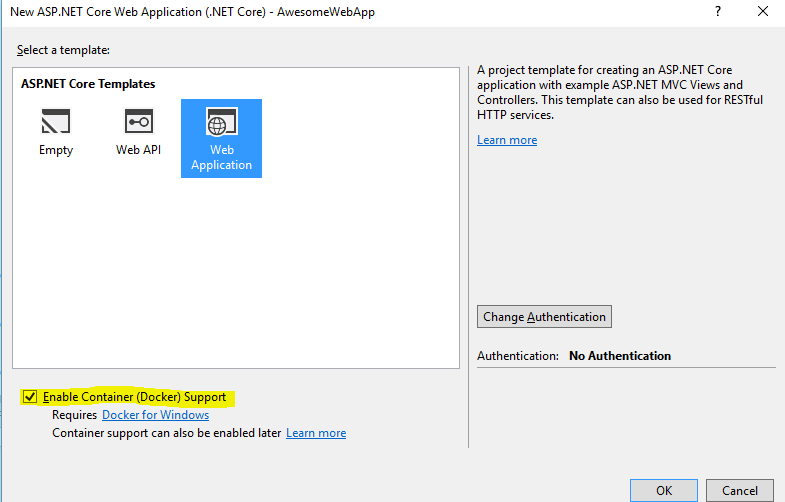
<h1 id="Docker-made-easy"><a href="#Docker-made-easy" class="headerlink" title="Docker made easy"></a>Docker made easy</h1><p>The combination of .NET Core and containers is very powerful. It gives a small iamge, which runs anywhere. You can literally ship your ‘machine’ and today it became even easier.<br>Starting with Visual Studio 2017, when you create a web application, you can enable Docker support from the box:</p>
<img src="/2016/11/16/coretainers/enable-docker-support.png" title="Built-in Docker support"> 
<p>If you have <a href="https://docs.docker.com/docker-for-windows/" target="_blank" rel="noopener">Docker for Windows</a> installed, you can get going. If not, install it first.<br>This will automatically generate several files for you:</p>
<ul>
<li>Dockerfile (where it all starts)</li>
<li>docker-compose.yml (compose your containers, more on this in a future post)</li>
<li>docker-compose.ci.build.yml (instructions for a CI build)</li>
</ul>
<p>This will be all you need to get going. Really, that’s it. Just press ‘F5’ (or click the debug button, which now conventiently says ‘Docker’).<br>Visual Studio will now start building your application and put it into a container. The best part here is that it will link your source files on disk into the container by using <a href="https://docs.docker.com/engine/tutorials/dockervolumes/" target="_blank" rel="noopener">volumes</a>. If you inspect the docker-compose.vs.debug.yml file, you can clearly see the line that says:</p>
<p><code>- .:/app</code> </p>
<p>what this line does, is that it links the current directory to the /app directory within the container. This means you can edit your code (and views) live, refresh your browser and it’ll update the app that you’re running <em>within</em> the container. The best thing is though, you can set breakpoints and they work just as though it was an application running on your local dev machine.</p>
<p><em>Mind you</em>: if your debug experience didn’t go quite as planned and you run into an error. You might just see something like this in the output window:</p>
<p><code>ERROR: for awesomewebapp  Cannot create container for service awesomewebapp: D: drive is not shared. Please share it in Docker for Windows Settings</code></p>
<p>Although the error message is quite verbose nowadays, right-click the Docker icon in your taskbar and go to settings. Now on the ‘Shared Drives’ tab, you can share the disk where your application resides. </p>
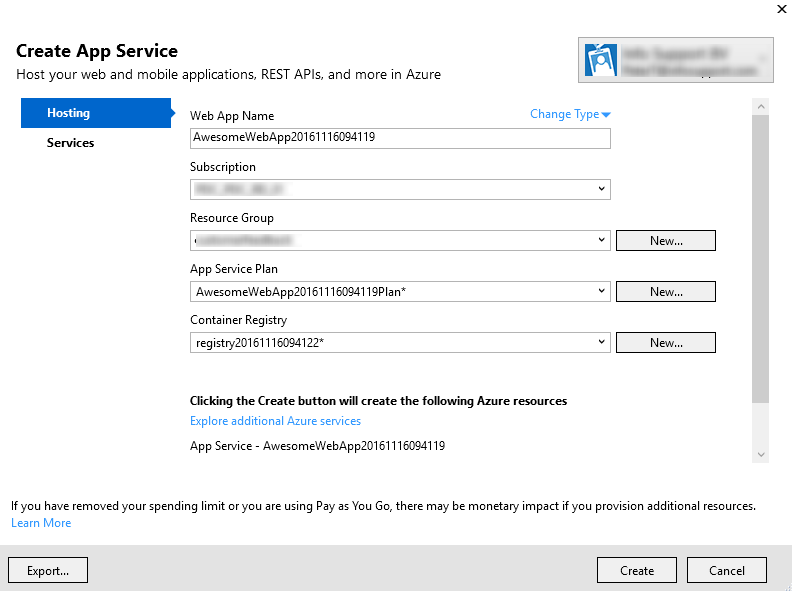
<h1 id="Publish-to-Azure"><a href="#Publish-to-Azure" class="headerlink" title="Publish to Azure"></a>Publish to Azure</h1><p>Now where it get’s really awesome, is that starting today you can publish your container to Azure with a few simple clicks. If you right-click your project, you can press ‘Publish’. We all know this action from years of publishing web applications through <a href="https://www.iis.net/downloads/microsoft/web-deploy" target="_blank" rel="noopener">WebDeploy</a> - and we all know what joy that brought ;-)<br>We then got the ability to quickly select ‘host in Azure’ when we created the project and now we have this:</p>
<img src="/2016/11/16/coretainers/publish-container-to-azure.png" title="Publish Container to Azure"> 
<p>The settings are simple:</p>
<ul>
<li>Provide a unique name for your app</li>
<li>Select an Azure Subscription</li>
<li>Select a resource group, or create one</li>
<li>Select or create an App Service Plan</li>
<li>Select or create a Docker registry</li>
</ul>
<p>I’m assuming you’re familiar with Azure terms such as the resource group and service plan, but the last one deserves a bit of explanation. A Docker registry is like a repository where your containers are stored. You can have both private and public registries - DockerHub being the most famous one. By default this will create a private registry where you can store the different versions of your container.</p>
<p>Press the ‘create’ button. Visual Studio and Azure will do the rest for you, it’s that simple.</p>
<p><em>Mind you</em>: make sure that both your app service plan and registry are in the same Azure region. As of writing this post, only West US is supported. You can select the region from the ‘Services’ tab and then pressing the gears next to the app service or registry you’re creating.</p>
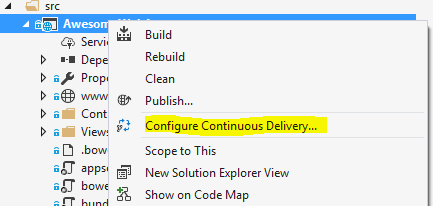
<h1 id="Result"><a href="#Result" class="headerlink" title="Result"></a>Result</h1><p>After pushing the ‘create’ button, my container got published to Azure and I’m able to access it from my browser. And although this is of course an awesome way to publish your application, this is probably not what you want from a DevOps perspective. You want to be able to make a change to the app, commit and push your changes to the repo and have an automated build/release pipeline to put your changes in production… and you can!<br>That’s what another new option in VS2017 does for you:</p>
<img src="/2016/11/16/coretainers/vs-configure-continuous-delivery.png" title="Continuous Delivery from VS2017"> 
<p>More on this feature in a later post though. For now, experiment with the containers and new features you have and I’ll show you how to automatically create a CI/CD pipeline from right within Visual Studio in a future post.</p>
]]></content>
    
    <summary type="html">
    
      &lt;p&gt;Most people, if not everyone, have seen the .NET Core demo’s in a Docker container on Linux by now. Some may even have experimented with 
    
    </summary>
    
      <category term="DevOps" scheme="https://toonen.io/categories/DevOps/"/>
    
    
      <category term="Docker" scheme="https://toonen.io/tags/Docker/"/>
    
      <category term="Connect" scheme="https://toonen.io/tags/Connect/"/>
    
      <category term="Containers" scheme="https://toonen.io/tags/Containers/"/>
    
      <category term="DevOps" scheme="https://toonen.io/tags/DevOps/"/>
    
  </entry>
  
  <entry>
    <title>New Blog</title>
    <link href="https://toonen.io/2016/07/09/new-blog/"/>
    <id>https://toonen.io/2016/07/09/new-blog/</id>
    <published>2016-07-09T21:09:34.000Z</published>
    <updated>2016-07-09T23:18:54.000Z</updated>
    
    <content type="html"><![CDATA[<p>So as you may have noticed, I have started a new blog. It’s been a long time coming but I finally found some time this weekend. My colleague <a href="http://defaultconstructor.com" title="Edwin van Wijk" target="_blank" rel="noopener">Edwin van Wijk</a> tipped me off on using <a href="http://hexo.io" title="Hexo" target="_blank" rel="noopener">hexo</a> quite a while ago and I seem to have gotten the hang of it. This blog itself is still a work in progress and I’ll be migrating old posts over soon, but in the meanwhile I figured I’d share some tips.</p>
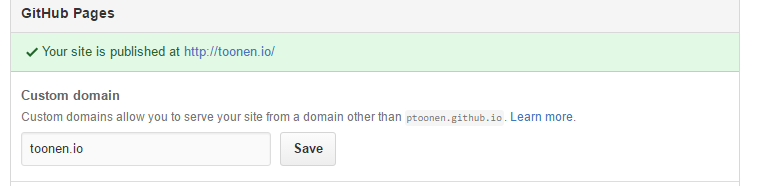
<h2 id="Free-Blog"><a href="#Free-Blog" class="headerlink" title="Free Blog"></a>Free Blog</h2><p>As you might know, <a href="https://github.com" title="GitHub" target="_blank" rel="noopener">GitHub</a> offers you a free website through GitHub Pages. This means that you can host your static website right from GitHub. Combine this with Hexo magic and you can start your own blog quite easily. What you might not know is that you can also add a custom domain to your GitHub page:</p>
<img src="/2016/07/09/new-blog/github-custom-domain.png" title="Add a custom domain to GitHub pages">
<p>Now although this by itself is pretty cool, it gets better. Although it’s possible to use SSL on GitHub pages, this isn’t currently possible when using a custom domain, or is it?</p>
<h2 id="CloudFlare-to-the-rescue"><a href="#CloudFlare-to-the-rescue" class="headerlink" title="CloudFlare to the rescue"></a>CloudFlare to the rescue</h2><p><a href="https://cloudflare.com" title="CloudFlare" target="_blank" rel="noopener">CloudFlare</a> offers a free tier that not only makes your website faster by using a smart caching mechanism (which you might want to turn off seeing as hexo generates static content), it also offers <strong>free SSL</strong> for all sites. Simply register for a free account on their site, go to the ‘DNS’ tab and add a CNAME for your domain, like so:</p>

<p>For the DNS-savvy, yes, I used a CNAME as my domain’s root, please refer to <a href="https://blog.cloudflare.com/introducing-cname-flattening-rfc-compliant-cnames-at-a-domains-root/" target="_blank" rel="noopener">this page</a> on details as to why this is still RFC compliant.</p>
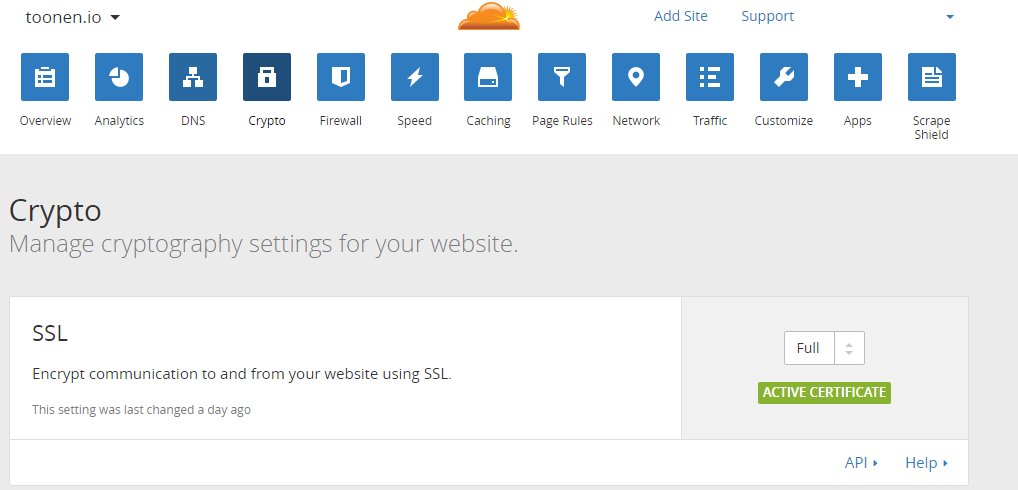
<p>Then nagivate to the ‘Crypto’ tab in the menu and set it to the following:</p>
<img src="/2016/07/09/new-blog/cloudflare-crypto.png" title="Set the Encryption level to Full">
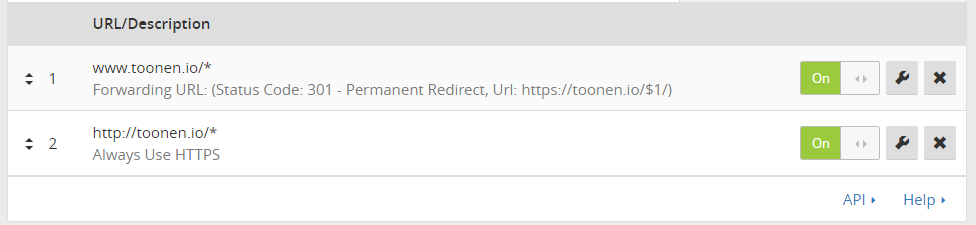
<p>Now for the final step, which ensures all your users are automatically redirected to your SSL page, navigate to the ‘Page Rules’ tab and add the following rules (where you replace the domain with your own domain). If you use a sub-domain such as ‘blog.domain.com’, make sure to use two asterisks (*) in the first rule and replace $1 in the rule with $2 so that it will correctly rewrite:</p>
<img src="/2016/07/09/new-blog/cloudflare-page-rules.png" title="Add Rewrite Rules">
<p>In case you do want to disable caching to prevent issues with your static site, enable a third rule where you match <a href="https://yourdomain.ext/*" target="_blank" rel="noopener">https://yourdomain.ext/*</a> and set the action to ‘Cache Level = ByPass’:</p>
<img src="/2016/07/09/new-blog/cloudflare-cache-level-bypass.png" title="Disable Caching">
<h2 id="Sit-back-and-relax"><a href="#Sit-back-and-relax" class="headerlink" title="Sit back and relax"></a>Sit back and relax</h2><p>That’s it. You’re done. You have just setup your new <strong>secure</strong> site using hexo, GitHub pages and CloudFlare. Of course you can also use this with the Basic Tier in <a href="https://azure.microsoft.com" target="_blank" rel="noopener">Azure</a> which allows you to use your own custom SSL for just 8 odd euro’s a month ;-)</p>
]]></content>
    
    <summary type="html">
    
      &lt;p&gt;So as you may have noticed, I have started a new blog. It’s been a long time coming but I finally found some time this weekend. My collea
    
    </summary>
    
      <category term="General" scheme="https://toonen.io/categories/General/"/>
    
    
      <category term="tips-and-tricks" scheme="https://toonen.io/tags/tips-and-tricks/"/>
    
      <category term="freebies" scheme="https://toonen.io/tags/freebies/"/>
    
  </entry>
  
  <entry>
    <title>Bash for Windows</title>
    <link href="https://toonen.io/2016/04/06/bash-for-windows/"/>
    <id>https://toonen.io/2016/04/06/bash-for-windows/</id>
    <published>2016-04-06T20:59:00.000Z</published>
    <updated>2016-07-09T23:14:52.000Z</updated>
    
    <content type="html"><![CDATA[<p>So last week at //Build/ Microsoft announced native Bash-integration on the Windows 10 platform and today they delivered the first preview. Being a Windows Insider since nearly day 1 – including installing those buggy mobile builds on my daily driver – I still have my daily driver set to the fast ring and I received build 14316 today. After about 30 mins of installation (ymmv), I eagerly logged in and typed ‘bash’. Unfortunately, nothing happened.</p>
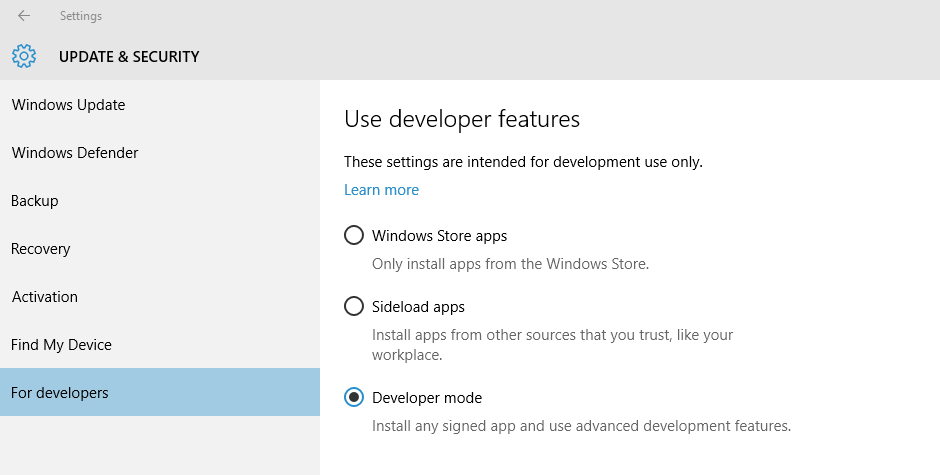
<p>Then I realized I had to switch some options on. First you need to enable the ‘developer mode’. You can do this by opening the settings app and selecting the correct option:</p>
<img src="/2016/04/06/bash-for-windows/enable-developer-mode.png" title="Enable Developer Mode">
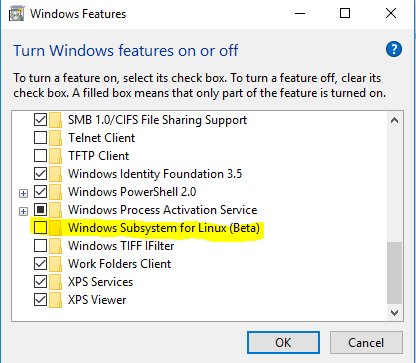
<p>Next you can enable the optional windows feature ‘Windows Subsystem for Linux (Beta)’:</p>
<img src="/2016/04/06/bash-for-windows/enable-windows-feature.jpg" title="Enable Windows Feature">
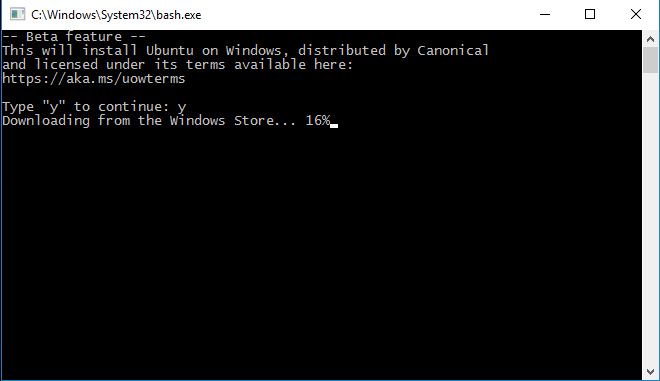
<p>After a reboot, you can press the windows key and enter ‘bash’. A new prompt will open with the question if you want to install Ubuntu – say what:</p>
<img src="/2016/04/06/bash-for-windows/install-bash.png" title="Installing Bash... on Windows">
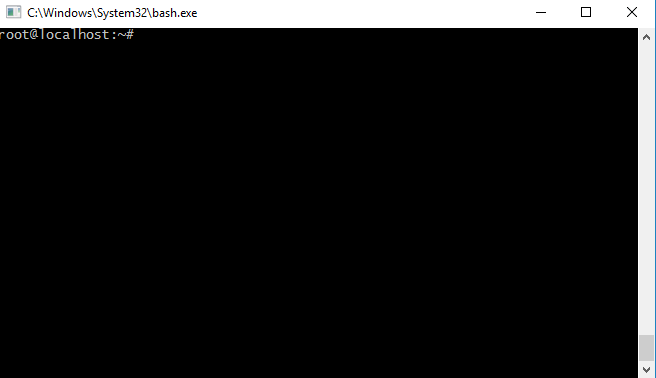
<p>And that’s it, you’re root:</p>
<img src="/2016/04/06/bash-for-windows/root-on-windows.png" title="Root on Windows!">
<p>A few tips:</p>
<ul>
<li>right click the title bar and go to ‘properties’ enable ‘quick editing’ here, this allows you to copy/paste into the window.</li>
<li>if you’re like me, and you try to install Docker even though you kind of knew it wouldn’t work: it doesn’t work. Luckily there’s an <a href="https://blog.docker.com/2016/03/docker-for-mac-windows-beta/" target="_blank" rel="noopener">easy integration</a> running a docker host in HyperV just around the corner (and I run the beta already), so no sweat there, just had to try 🙂</li>
</ul>
]]></content>
    
    <summary type="html">
    
      &lt;p&gt;So last week at //Build/ Microsoft announced native Bash-integration on the Windows 10 platform and today they delivered the first previe
    
    </summary>
    
      <category term="General" scheme="https://toonen.io/categories/General/"/>
    
    
      <category term="Windows" scheme="https://toonen.io/tags/Windows/"/>
    
      <category term="Linux" scheme="https://toonen.io/tags/Linux/"/>
    
      <category term="Cross-Platform" scheme="https://toonen.io/tags/Cross-Platform/"/>
    
      <category term="Bash" scheme="https://toonen.io/tags/Bash/"/>
    
      <category term="Docker" scheme="https://toonen.io/tags/Docker/"/>
    
  </entry>
  
  <entry>
    <title>Dev Intersection 2015 - dag 6</title>
    <link href="https://toonen.io/2015/11/09/dev-intersection-2015-dag-6/"/>
    <id>https://toonen.io/2015/11/09/dev-intersection-2015-dag-6/</id>
    <published>2015-11-09T17:01:00.000Z</published>
    <updated>2016-07-09T23:18:10.000Z</updated>
    
    <content type="html"><![CDATA[<p>Ook al ben ik inmiddels alweer een tijdje terug uit Las Vegas en inmiddels de jet-lag te boven, wilde ik jullie toch niet mijn laatste dag op Dev Intersection onthouden. Dit was namelijk de dag waar ik het meest naar had uitgekeken.</p>
<p>Ondanks mijn eerdere experimenten met IoT (<a href="http://dotnetflix.com/player/3" target="_blank" rel="noopener">dotnetFlix aflevering 3</a>) waarbij ik mijn gas- en electriciteitsmeter liet ‘praten’ met het internet en wat andere simpele projectjes, had ik nog steeds niet echt het idee dat ik met IoT bezig was, zo had ik wel een koppeling met Azure gemaakt maar niet de IoT hub gebruikt, geen stream analytics toegepast en geen PowerBI. Dat was nou precies waar mijn laatste workshop over ging: IoT, Azure, PowerBI en dat aangestuurd met <a href="http://nodejs.org/" target="_blank" rel="noopener">Node.js</a>!</p>
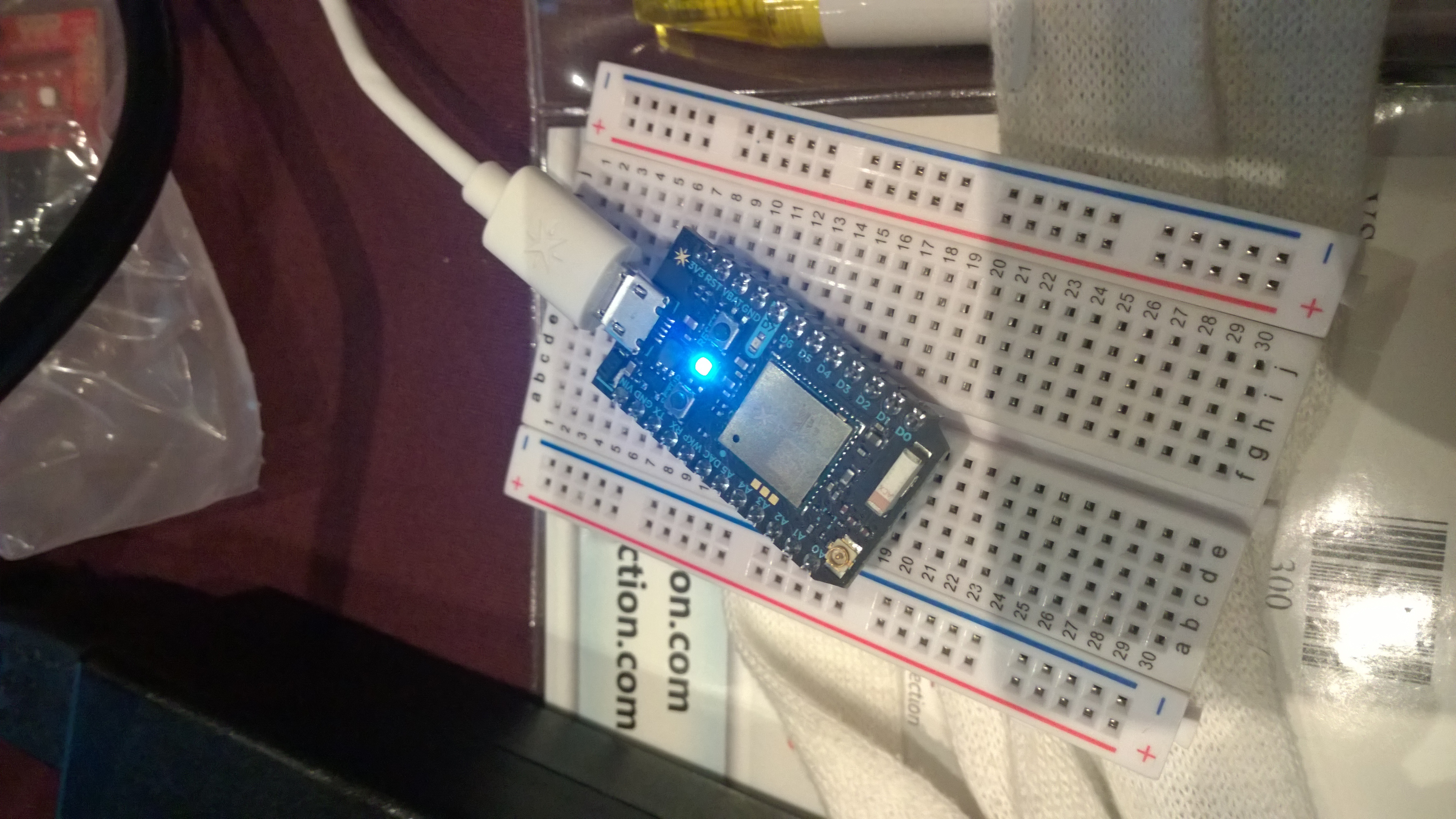
<img src="/2015/11/09/dev-intersection-2015-dag-6/particle-photon.jpg" title="Particle Photon">
<p>Gedurende de gehele dag werd ik meegenomen door Doug Seven en zijn team waarbij we in eerste instantie aan de slag gingen met een <a href="https://store.particle.io/?product=particle-photon" target="_blank" rel="noopener">Particle Photon</a>. Deze mini-module van $19 (zie foto waar hij bovenop een breadboard ligt) is in staat om out-of-the-box te communiceren met wifi en heeft een aantal digitale en analoge poorten aan boord waarmee je kunt communiceren. Plug ‘m in in je PC (of een andere USB power source) en je kunt gaan zodra je jouw particle hebt ‘geclaimt’ via hun cloud service.</p>
<p>Tijdens de workshop wordt uitgelegd dat je op verschillende manieren om kunt gaan met je devices, zo kun je rechtstreeks met het internet communiceren, of je kunt via een gateway-device werken. Zo doen wij dat ook deze dag: via onze pc. Gewapend met een text-editor (ik koos voor <a href="https://code.visualstudio.com/" target="_blank" rel="noopener">Visual Studio Code</a>), de <a href="http://johnny-five.io/" target="_blank" rel="noopener">Johnny Five</a> node module en de <a href="https://github.com/spark/particle-cli" target="_blank" rel="noopener">Particle-cli</a> module, kon ik aan de slag met Node.js. Aangezien er geen ‘hello world’ te outputten was op de module aangezien er geen display op zit, moest een knipperend lampje het doen (dat mijn lampje in morse alsnog ‘hello world’ seinde, laten we maar even buiten beschouwing ;-)). Probeer overigens ook vooral het particle-cli commando ‘nyan’ en ik geef je alvast als tip dat je ook ‘particle-cli nyan off’ kunt doen zonder een reboot te geven.</p>
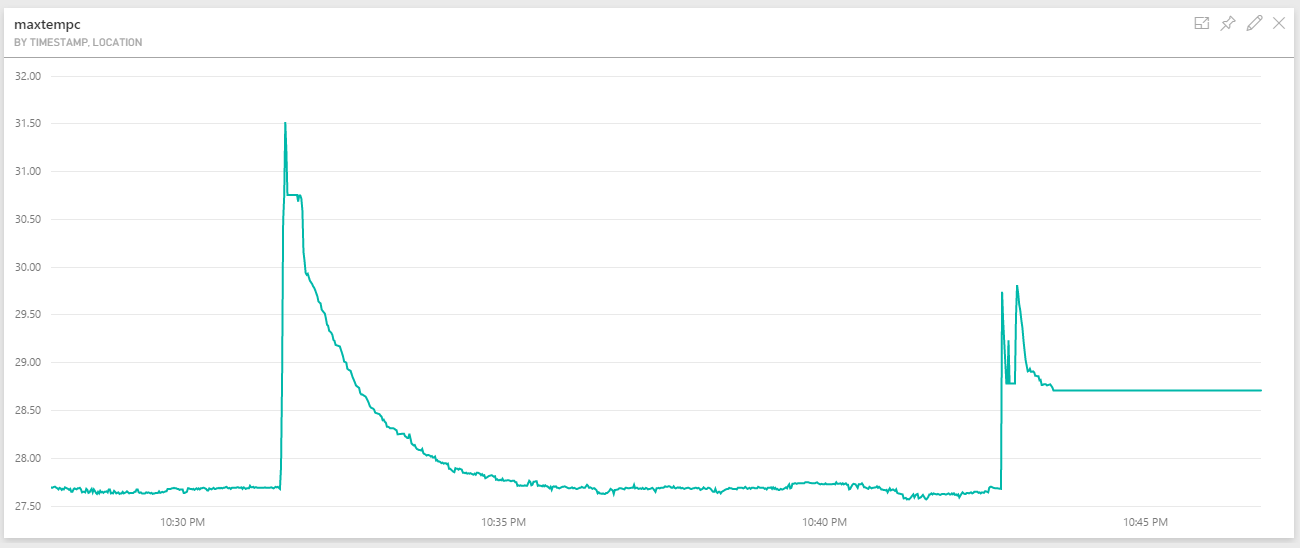
<p>Gedurende de dag kwamen we steeds verder met onze particles en koppelden we deze aan een <a href="https://github.com/sparkfun/Weather_Shield" target="_blank" rel="noopener">SparkFun weathershield</a> waarmee een simpel weerstation werd gebouwd. Door deze metrieken vervolgens met behulp van de Azure IoT node-module naar Azure te pushen en deze met een stream analytics job in een Power BI DataSet te gieten, kun je in Power BI vervolgens een mooi dashboard er overheen gieten. Let er hierbij op dat je om PowerBI als output voor je Stream Analytics Job te selecteren, je in de oude huidige Azure portal moet kijken!</p>
<p>Zie hieronder mijn resultaat met op de horizontale as de tijd en verticaal de temperatuur :-)</p>
<img src="/2015/11/09/dev-intersection-2015-dag-6/power-bi-stats.png" title="Temperatuur">
<p>Al met al was dit een leerzame workshop waar je in korte tijd met een hoop informatie tot je neemt, en je de kans krijgt te werken met de mannen die <a href="http://www.microsoft.com/en-us/server-cloud/customer-stories/Kuka-Robotics.aspx" target="_blank" rel="noopener">hier</a> achter zitten en ze vragen te stellen. Krijg je dus de kans om een workshop van Doug en de mannen te volgen: grijp ‘m! Kijk op hun <a href="https://thinglabsio.github.io/" target="_blank" rel="noopener">github</a> voor de code, guides en workshop planning.</p>
]]></content>
    
    <summary type="html">
    
      &lt;p&gt;Ook al ben ik inmiddels alweer een tijdje terug uit Las Vegas en inmiddels de jet-lag te boven, wilde ik jullie toch niet mijn laatste da
    
    </summary>
    
      <category term="Conferences" scheme="https://toonen.io/categories/Conferences/"/>
    
    
      <category term="DevInterSection" scheme="https://toonen.io/tags/DevInterSection/"/>
    
      <category term="Dutch" scheme="https://toonen.io/tags/Dutch/"/>
    
  </entry>
  
  <entry>
    <title>Dev Intersection 2015 - dag 3</title>
    <link href="https://toonen.io/2015/10/28/dev-intersection-2015-dag-3/"/>
    <id>https://toonen.io/2015/10/28/dev-intersection-2015-dag-3/</id>
    <published>2015-10-28T06:38:00.000Z</published>
    <updated>2016-07-09T23:18:22.000Z</updated>
    
    <content type="html"><![CDATA[<p>Samen met Mark Rexwinkel en Edwin van Wijk ben ik deze week aanwezig op de Dev Intersection 2015 conferentie in Las Vegas. Via een dagelijkse blog proberen wij jullie op de hoogte te houden van wat we hier zien en horen. Na <a href="https://blogs.infosupport.com/dev-intersection-2015-dag-1/" target="_blank" rel="noopener">Edwin</a> en <a href="https://blogs.infosupport.com/dev-intersection-2015-dag-2/" target="_blank" rel="noopener">Mark</a> ben ik vandaag aan de beurt.</p>
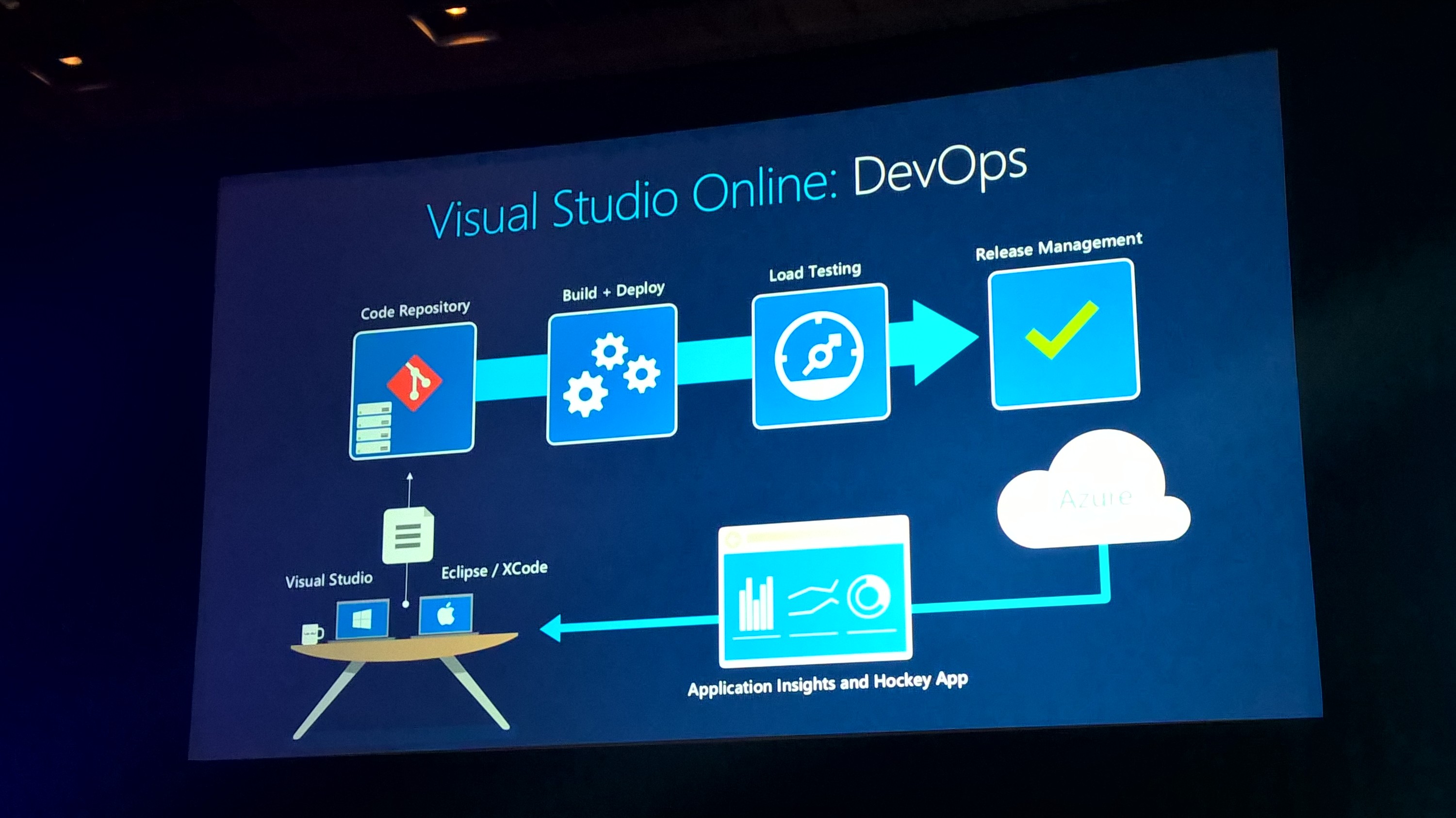
<p>De derde dag van de conferentie was de eerste dag waarop ‘reguliere’ sessies werden gegeven. Na een goed ontbijt, begon de dag met een keynote van Scott Guthrie. Hij vertelde voornamelijk over de ‘Journey to the Cloud’ en deelde Microsoft’s visie op DevOps met <a href="https://www.visualstudio.com/en-us/products/what-is-visual-studio-online-vs.aspx" target="_blank" rel="noopener">Visual Studio Online</a>, enkele indrukwekkende cijfers over Azure (wat te denken van 777 biljoen storage queries per dag?!) en de manier waarop Microsoft’s Clouddiensten zoals Office 365 in het grote plaatje van de moderne IT-industrie passen.</p>
<img src="/2015/10/28/dev-intersection-2015-dag-3/devops-on-vso.jpg" title="DevOps met VSO">
<p>Na de keynote zijn we elk onze eigen kant uit gegaan. Ik heb sessies gevolgd van Julie Lerman (Domain Driven Design for the Database Driven Mind), welke erg goed wordt samengevat in een <a href="https://msdn.microsoft.com/en-us/magazine/dn342868.aspx" target="_blank" rel="noopener">drietal blogposts</a>, een sessie van Steven Murawski (Survive and Thrive in a DevOps World) die erop neer kwam dat het invoeren van DevOps voornamelijk een cultuur-shift is waarbij men de ‘fear culture’ en ‘blame game’ moet laten varen. Hij heeft een flink aantal tips <a href="http://stevenmurawski.com/devops-reading-list/" target="_blank" rel="noopener">op zijn blog</a> staan om met DevOps aan de slag te gaan.</p>
<p>In de middag ben ik verder gegaan met een sessie van Troy Hunt (Securing ASP.NET in an Azure Environment). Nadat ik zijn workshop had gevolgd op maandag, was ik erg benieuwd wat hij over dit onderwerp had te zeggen en ik werd niet teleurgesteld. Alhoewel het in het begin voornamelijk om no-brainers ging zoals het least-privileged-account principe, kwam hij uiteindelijk tot tips omtrent <a href="https://azure.microsoft.com/en-us/documentation/articles/sql-database-dynamic-data-masking-get-started/" target="_blank" rel="noopener">dynamic data masking</a> in Azure SQL databases, stipte hij nog even het belang van application settings en connection strings in de Azure portal aan en dat je eigenlijk altijd two step verification aan moet zetten als je met jouw account een Azure subscription gaat beheren. Dit laatste kun je instellen via <a href="https://account.live.com/proofs/Manage" target="_blank" rel="noopener">accountbeheer</a>.</p>
<p>Al met al was dit weer een geslaagde dag en kijk ik al uit naar morgen!</p>
]]></content>
    
    <summary type="html">
    
      &lt;p&gt;Samen met Mark Rexwinkel en Edwin van Wijk ben ik deze week aanwezig op de Dev Intersection 2015 conferentie in Las Vegas. Via een dageli
    
    </summary>
    
      <category term="Conferences" scheme="https://toonen.io/categories/Conferences/"/>
    
    
      <category term="DevInterSection" scheme="https://toonen.io/tags/DevInterSection/"/>
    
      <category term="Dutch" scheme="https://toonen.io/tags/Dutch/"/>
    
  </entry>
  
  <entry>
    <title>Custom build tasks in TFS 2015</title>
    <link href="https://toonen.io/2015/07/21/custom-build-tasks-in-tfs-2015/"/>
    <id>https://toonen.io/2015/07/21/custom-build-tasks-in-tfs-2015/</id>
    <published>2015-07-21T12:46:00.000Z</published>
    <updated>2016-07-09T23:19:22.000Z</updated>
    
    <content type="html"><![CDATA[<p>Since I upgraded my team’s private TFS instance to TFS 2015 RC1, followed by RC2, the whole team has been working with TFS 2015 quite a lot. Of course one of the major features is the new build engine and we’ve given that quite a ride. From cross platform builds on Mac and Linux to custom build tasks, we’ve accomplished quite a lot. Seeing as during yesterday’s Visual Studio 2015 launch, Brian Harry stated that it was ‘quite easy’ to build your own tasks, I figured I’d give a short write-down of our experiences with custom tasks.</p>
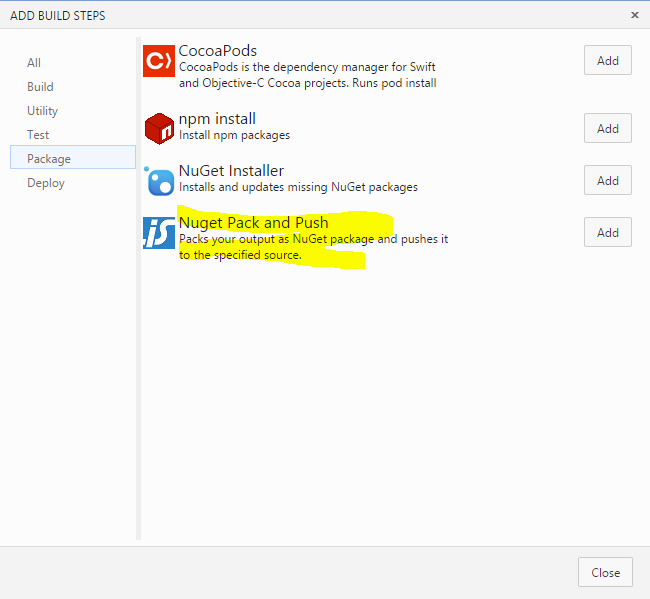
<h2 id="Preface"><a href="#Preface" class="headerlink" title="Preface"></a>Preface</h2><p>From the moment I upgraded our R&amp;D server to RC1, we’ve been working with the new build system. Up until RC2 it was only possible to add custom build tasks, but we weren’t able to remove them. On top of that, the whole process isn’t documented quite yet. Seeing as we quite often add NuGet packages to a feed and didn’t want to add a, not very descriptive, PowerShell task to all of our build definitions, we decided to use this example for a custom task and see how it would fare.</p>
<h2 id="Prerequisite-one-What-is-a-task"><a href="#Prerequisite-one-What-is-a-task" class="headerlink" title="Prerequisite one: What is a task?"></a>Prerequisite one: What is a task?</h2><p>To make a custom build task, we first need to know what it looks like. Luckily Microsoft has open-sourced most of the current build tasks in <a href="https://github.com/Microsoft/vso-agent-tasks" target="_blank" rel="noopener">https://github.com/Microsoft/vso-agent-tasks</a> which gave us a fair idea of what a build task is:</p>
<ol>
<li>a JSON file describing the plugin</li>
<li>a PowerShell or Node.JS file containing the functionality (this post will focus on PowerShell)</li>
<li>an (optional) icon file</li>
<li>optional resources translating the options to another language</li>
</ol>
<p>Now the only thing we needed to find out was: how to upload these tasks and in what format?</p>
<p>Good to know:</p>
<ol>
<li>To make sure your icon displays correctly, it must be 32×32 pixels</li>
<li>The task ID is a GUID which you need to create yourself</li>
<li>The task category should be an existing category</li>
<li>Visibility tells you what kind of task it is, possible values are: Build, Release and Preview. Currently only Build-type tasks are shown</li>
</ol>
<h2 id="Prerequisite-two-How-to-upload-a-task"><a href="#Prerequisite-two-How-to-upload-a-task" class="headerlink" title="Prerequisite two: How to upload a task?"></a>Prerequisite two: How to upload a task?</h2><p>We quickly figured out that the tasks were simply .zip files containing the aforementioned items, so creating a zip was an easy but then we needed to get it there. By going through the github repository’s, we figured out there was a REST-API which controls all the tasks and we figured that by doing a PUT-call to said endpoint we could create a new task, but also overwrite tasks.</p>
<p>The following powershell-script enables you to upload tasks:</p>
<figure class="highlight powershell"><table><tr><td class="gutter"><pre><span class="line">1</span><br><span class="line">2</span><br><span class="line">3</span><br><span class="line">4</span><br><span class="line">5</span><br><span class="line">6</span><br><span class="line">7</span><br><span class="line">8</span><br><span class="line">9</span><br><span class="line">10</span><br><span class="line">11</span><br><span class="line">12</span><br><span class="line">13</span><br><span class="line">14</span><br><span class="line">15</span><br><span class="line">16</span><br><span class="line">17</span><br><span class="line">18</span><br><span class="line">19</span><br><span class="line">20</span><br><span class="line">21</span><br><span class="line">22</span><br><span class="line">23</span><br><span class="line">24</span><br><span class="line">25</span><br><span class="line">26</span><br><span class="line">27</span><br><span class="line">28</span><br><span class="line">29</span><br><span class="line">30</span><br><span class="line">31</span><br></pre></td><td class="code"><pre><span class="line"><span class="keyword">param</span>(</span><br><span class="line">   [Parameter(Mandatory=<span class="literal">$true</span>)][string]<span class="variable">$TaskPath</span>,</span><br><span class="line">   [Parameter(Mandatory=<span class="literal">$true</span>)][string]<span class="variable">$TfsUrl</span>,</span><br><span class="line">   [PSCredential]<span class="variable">$Credential</span> = (<span class="built_in">Get-Credential</span>),</span><br><span class="line">   [switch]<span class="variable">$Overwrite</span> = <span class="literal">$false</span></span><br><span class="line">)</span><br><span class="line"></span><br><span class="line"><span class="comment"># Load task definition from the JSON file</span></span><br><span class="line"><span class="variable">$taskDefinition</span> = (<span class="built_in">Get-Content</span> <span class="variable">$taskPath</span>\task.json) -join <span class="string">"`n"</span> | <span class="built_in">ConvertFrom-Json</span></span><br><span class="line"><span class="variable">$taskFolder</span> = <span class="built_in">Get-Item</span> <span class="variable">$TaskPath</span></span><br><span class="line"></span><br><span class="line"><span class="comment"># Zip the task content</span></span><br><span class="line"><span class="built_in">Write-Output</span> <span class="string">"Zipping task content"</span></span><br><span class="line"><span class="variable">$taskZip</span> = (<span class="string">"&#123;0&#125;\..\&#123;1&#125;.zip"</span> -f <span class="variable">$taskFolder</span>, <span class="variable">$taskDefinition</span>.id)</span><br><span class="line"><span class="keyword">if</span> (<span class="built_in">Test-Path</span> <span class="variable">$taskZip</span>) &#123; <span class="built_in">Remove-Item</span> <span class="variable">$taskZip</span> &#125;</span><br><span class="line"></span><br><span class="line"><span class="built_in">Add-Type</span> -AssemblyName <span class="string">"System.IO.Compression.FileSystem"</span></span><br><span class="line">[IO.Compression.ZipFile]::CreateFromDirectory(<span class="variable">$taskFolder</span>, <span class="variable">$taskZip</span>)</span><br><span class="line"></span><br><span class="line"><span class="comment"># Prepare to upload the task</span></span><br><span class="line"><span class="built_in">Write-Output</span> <span class="string">"Uploading task content"</span></span><br><span class="line"><span class="variable">$headers</span> = @&#123; <span class="string">"Accept"</span> = <span class="string">"application/json; api-version=2.0-preview"</span>; <span class="string">"X-TFS-FedAuthRedirect"</span> = <span class="string">"Suppress"</span> &#125;</span><br><span class="line"><span class="variable">$taskZipItem</span> = <span class="built_in">Get-Item</span> <span class="variable">$taskZip</span></span><br><span class="line"><span class="variable">$headers</span>.Add(<span class="string">"Content-Range"</span>, <span class="string">"bytes 0-$(<span class="variable">$taskZipItem</span>.Length - 1)/$(<span class="variable">$taskZipItem</span>.Length)"</span>)</span><br><span class="line"><span class="variable">$url</span> = (<span class="string">"&#123;0&#125;/_apis/distributedtask/tasks/&#123;1&#125;"</span> -f <span class="variable">$TfsUrl</span>, <span class="variable">$taskDefinition</span>.id)</span><br><span class="line"><span class="keyword">if</span> (<span class="variable">$Overwrite</span>) &#123;</span><br><span class="line">   <span class="variable">$url</span> += <span class="string">"?overwrite=true"</span></span><br><span class="line">&#125;</span><br><span class="line"></span><br><span class="line"><span class="comment"># Actually upload it</span></span><br><span class="line"><span class="built_in">Invoke-RestMethod</span> -Uri <span class="variable">$url</span> -Credential <span class="variable">$Credential</span> -Headers <span class="variable">$headers</span> -ContentType application/octet-stream -Method Put -InFile <span class="variable">$taskZipItem</span></span><br></pre></td></tr></table></figure>
<p>Good to know:</p>
<ol>
<li>Currently only ‘Agent Pool Administrators’ are able to add/update or remove tasks.</li>
<li>Tasks are server-wide, this means that you will upload to the server, not to a specific collection or project.</li>
</ol>
<h2 id="Creating-the-actual-task"><a href="#Creating-the-actual-task" class="headerlink" title="Creating the actual task"></a>Creating the actual task</h2><p>So like I said, we’ll be creating a new task that’s going to publish our NuGet packages to a feed. So first we need to decide what information we need to push our packages:</p>
<ol>
<li>The target we want to pack (.csproj or .nuspec file relative to the source-directory)</li>
<li>The package source we want to push to</li>
</ol>
<p>For this example I’m assuming you’re only building for a single build configuration and single target platform, which we’ll use in the PowerShell-script.</p>
<p>First we’ll make the task definition. As I said, this is simply a JSON file describing the task and its inputs.</p>
<figure class="highlight json"><table><tr><td class="gutter"><pre><span class="line">1</span><br><span class="line">2</span><br><span class="line">3</span><br><span class="line">4</span><br><span class="line">5</span><br><span class="line">6</span><br><span class="line">7</span><br><span class="line">8</span><br><span class="line">9</span><br><span class="line">10</span><br><span class="line">11</span><br><span class="line">12</span><br><span class="line">13</span><br><span class="line">14</span><br><span class="line">15</span><br><span class="line">16</span><br><span class="line">17</span><br><span class="line">18</span><br><span class="line">19</span><br><span class="line">20</span><br><span class="line">21</span><br><span class="line">22</span><br><span class="line">23</span><br><span class="line">24</span><br><span class="line">25</span><br><span class="line">26</span><br><span class="line">27</span><br><span class="line">28</span><br><span class="line">29</span><br><span class="line">30</span><br><span class="line">31</span><br><span class="line">32</span><br><span class="line">33</span><br><span class="line">34</span><br><span class="line">35</span><br><span class="line">36</span><br><span class="line">37</span><br><span class="line">38</span><br><span class="line">39</span><br><span class="line">40</span><br></pre></td><td class="code"><pre><span class="line">&#123;</span><br><span class="line">   <span class="attr">"id"</span>: <span class="string">"61ed0e1d-efb7-406e-a42b-80f5d22e6d54"</span>,</span><br><span class="line">   <span class="attr">"name"</span>: <span class="string">"NuGetPackAndPush"</span>,</span><br><span class="line">   <span class="attr">"friendlyName"</span>: <span class="string">"Nuget Pack and Push"</span>,</span><br><span class="line">   <span class="attr">"description"</span>: <span class="string">"Packs your output as NuGet package and pushes it to the specified source."</span>,</span><br><span class="line">   <span class="attr">"category"</span>: <span class="string">"Package"</span>,</span><br><span class="line">   <span class="attr">"author"</span>: <span class="string">"Info Support"</span>,</span><br><span class="line">   <span class="attr">"version"</span>: &#123;</span><br><span class="line">      <span class="attr">"Major"</span>: <span class="number">0</span>,</span><br><span class="line">      <span class="attr">"Minor"</span>: <span class="number">1</span>,</span><br><span class="line">      <span class="attr">"Patch"</span>: <span class="number">0</span></span><br><span class="line">   &#125;,</span><br><span class="line">   <span class="attr">"minimumAgentVersion"</span>: <span class="string">"1.83.0"</span>,</span><br><span class="line">   <span class="attr">"inputs"</span>: [</span><br><span class="line">      &#123;</span><br><span class="line">         <span class="attr">"name"</span>: <span class="string">"packtarget"</span>,</span><br><span class="line">         <span class="attr">"type"</span>: <span class="string">"string"</span>,</span><br><span class="line">         <span class="attr">"label"</span>: <span class="string">"Pack target"</span>,</span><br><span class="line">         <span class="attr">"defaultValue"</span>: <span class="string">""</span>,</span><br><span class="line">         <span class="attr">"required"</span>: <span class="literal">true</span>,</span><br><span class="line">         <span class="attr">"helpMarkDown"</span>: <span class="string">"Relative path to .csproj or .nuspec file to pack."</span></span><br><span class="line">      &#125;,</span><br><span class="line">      &#123;</span><br><span class="line">         <span class="attr">"name"</span>: <span class="string">"packagesource"</span>,</span><br><span class="line">         <span class="attr">"type"</span>: <span class="string">"string"</span>,</span><br><span class="line">         <span class="attr">"label"</span>: <span class="string">"Package Source"</span>,</span><br><span class="line">         <span class="attr">"defaultValue"</span>: <span class="string">""</span>,</span><br><span class="line">         <span class="attr">"required"</span>: <span class="literal">true</span>,</span><br><span class="line">         <span class="attr">"helpMarkDown"</span>: <span class="string">"The source we want to push the package to"</span></span><br><span class="line">      &#125;</span><br><span class="line">   ],</span><br><span class="line">   <span class="attr">"instanceNameFormat"</span>: <span class="string">"Nuget Pack and Push $(packtarget)"</span>,</span><br><span class="line">   <span class="attr">"execution"</span>: &#123;</span><br><span class="line">      <span class="attr">"PowerShell"</span>: &#123;</span><br><span class="line">         <span class="attr">"target"</span>: <span class="string">"$(currentDirectory)\\PackAndPush.ps1"</span>,</span><br><span class="line">         <span class="attr">"argumentFormat"</span>: <span class="string">""</span>,</span><br><span class="line">         <span class="attr">"workingDirectory"</span>: <span class="string">"$(currentDirectory)"</span></span><br><span class="line">      &#125;</span><br><span class="line">   &#125;</span><br><span class="line">&#125;</span><br></pre></td></tr></table></figure>
<p>This version of the task will  be a very rudimentary one, which doesn’t do much (any) validation, so you might want to add that yourself.</p>
<figure class="highlight powershell"><table><tr><td class="gutter"><pre><span class="line">1</span><br><span class="line">2</span><br><span class="line">3</span><br><span class="line">4</span><br><span class="line">5</span><br><span class="line">6</span><br><span class="line">7</span><br><span class="line">8</span><br><span class="line">9</span><br><span class="line">10</span><br><span class="line">11</span><br><span class="line">12</span><br><span class="line">13</span><br><span class="line">14</span><br><span class="line">15</span><br><span class="line">16</span><br><span class="line">17</span><br><span class="line">18</span><br><span class="line">19</span><br><span class="line">20</span><br><span class="line">21</span><br><span class="line">22</span><br><span class="line">23</span><br><span class="line">24</span><br><span class="line">25</span><br><span class="line">26</span><br><span class="line">27</span><br><span class="line">28</span><br><span class="line">29</span><br><span class="line">30</span><br><span class="line">31</span><br><span class="line">32</span><br><span class="line">33</span><br><span class="line">34</span><br><span class="line">35</span><br><span class="line">36</span><br><span class="line">37</span><br><span class="line">38</span><br><span class="line">39</span><br><span class="line">40</span><br><span class="line">41</span><br><span class="line">42</span><br><span class="line">43</span><br><span class="line">44</span><br><span class="line">45</span><br><span class="line">46</span><br><span class="line">47</span><br><span class="line">48</span><br><span class="line">49</span><br><span class="line">50</span><br><span class="line">51</span><br><span class="line">52</span><br><span class="line">53</span><br><span class="line">54</span><br><span class="line">55</span><br><span class="line">56</span><br><span class="line">57</span><br><span class="line">58</span><br><span class="line">59</span><br><span class="line">60</span><br><span class="line">61</span><br><span class="line">62</span><br><span class="line">63</span><br><span class="line">64</span><br><span class="line">65</span><br><span class="line">66</span><br><span class="line">67</span><br><span class="line">68</span><br><span class="line">69</span><br><span class="line">70</span><br><span class="line">71</span><br><span class="line">72</span><br><span class="line">73</span><br><span class="line">74</span><br><span class="line">75</span><br><span class="line">76</span><br><span class="line">77</span><br><span class="line">78</span><br><span class="line">79</span><br><span class="line">80</span><br></pre></td><td class="code"><pre><span class="line">[cmdletbinding()]</span><br><span class="line"><span class="keyword">param</span></span><br><span class="line">(</span><br><span class="line">   [Parameter(Mandatory=<span class="literal">$true</span>)][string] <span class="variable">$packtarget</span>,</span><br><span class="line">   [Parameter(Mandatory=<span class="literal">$false</span>)][string] <span class="variable">$packagesource</span></span><br><span class="line">)</span><br><span class="line"></span><br><span class="line"><span class="comment">####################################################################################################</span></span><br><span class="line"><span class="comment"># 1 Auto Configuration</span></span><br><span class="line"><span class="comment">####################################################################################################</span></span><br><span class="line"></span><br><span class="line"><span class="comment"># Stop the script on error</span></span><br><span class="line"><span class="variable">$ErrorActionPreference</span> = <span class="string">"Stop"</span></span><br><span class="line"></span><br><span class="line"><span class="comment"># Relative location of nuget.exe to build agent home directory</span></span><br><span class="line"><span class="variable">$nugetExecutableRelativePath</span> = <span class="string">"Agent\Worker\Tools\nuget.exe"</span></span><br><span class="line"></span><br><span class="line"><span class="comment"># These variables are provided by TFS</span></span><br><span class="line"><span class="variable">$buildAgentHomeDirectory</span> = <span class="variable">$env:AGENT_HOMEDIRECTORY</span></span><br><span class="line"><span class="variable">$buildSourcesDirectory</span> = <span class="variable">$Env:BUILD_SOURCESDIRECTORY</span></span><br><span class="line"><span class="variable">$buildStagingDirectory</span> = <span class="variable">$Env:BUILD_STAGINGDIRECTORY</span></span><br><span class="line"><span class="variable">$buildPlatform</span> = <span class="variable">$Env:BUILDPLATFORM</span></span><br><span class="line"><span class="variable">$buildConfiguration</span> = <span class="variable">$Env:BUILDCONFIGURATION</span></span><br><span class="line"></span><br><span class="line"><span class="variable">$packagesOutputDirectory</span> = <span class="variable">$buildStagingDirectory</span></span><br><span class="line"></span><br><span class="line"><span class="comment"># Determine full path of pack target file</span></span><br><span class="line"><span class="variable">$packTargetFullPath</span> = <span class="built_in">Join-Path</span> -Path <span class="variable">$buildSourcesDirectory</span> -ChildPath <span class="variable">$packTarget</span></span><br><span class="line"></span><br><span class="line"><span class="comment"># Determine full path to nuget.exe</span></span><br><span class="line"><span class="variable">$nugetExecutableFullPath</span> = <span class="built_in">Join-Path</span> -Path <span class="variable">$buildAgentHomeDirectory</span> -ChildPath <span class="variable">$nugetExecutableRelativePath</span></span><br><span class="line"></span><br><span class="line"><span class="comment">####################################################################################################</span></span><br><span class="line"><span class="comment"># 2 Create package</span></span><br><span class="line"><span class="comment">####################################################################################################</span></span><br><span class="line"></span><br><span class="line"><span class="built_in">Write-Host</span> <span class="string">"2. Creating NuGet package"</span></span><br><span class="line"></span><br><span class="line"><span class="variable">$packCommand</span> = (<span class="string">"pack `"&#123;0&#125;`" -OutputDirectory `"&#123;1&#125;`" -NonInteractive -Symbols"</span> -f <span class="variable">$packTargetFullPath</span>, <span class="variable">$packagesOutputDirectory</span>)</span><br><span class="line"></span><br><span class="line"><span class="keyword">if</span>(<span class="variable">$packTargetFullPath</span>.ToLower().EndsWith(<span class="string">".csproj"</span>))</span><br><span class="line">&#123;</span><br><span class="line">   <span class="variable">$packCommand</span> += <span class="string">" -IncludeReferencedProjects"</span></span><br><span class="line"></span><br><span class="line">   <span class="comment"># Remove spaces from build platform, so 'Any CPU' becomes 'AnyCPU'</span></span><br><span class="line">   <span class="variable">$packCommand</span> += (<span class="string">" -Properties `"Configuration=&#123;0&#125;;Platform=&#123;1&#125;`""</span> -f    <span class="variable">$buildConfiguration</span>, (<span class="variable">$buildPlatform</span> <span class="nomarkup">-replace</span> <span class="string">'\s'</span>,<span class="string">''</span>))</span><br><span class="line">&#125;</span><br><span class="line"></span><br><span class="line"><span class="built_in">Write-Host</span> (<span class="string">"`tPack command: &#123;0&#125;"</span> -f <span class="variable">$packCommand</span>)</span><br><span class="line"><span class="built_in">Write-Host</span> (<span class="string">"`tCreating package..."</span>)</span><br><span class="line"></span><br><span class="line"><span class="variable">$packOutput</span> = <span class="built_in">Invoke-Expression</span> <span class="string">"&amp;'<span class="variable">$nugetExecutableFullPath</span>' <span class="variable">$packCommand</span>"</span> | <span class="built_in">Out-String</span></span><br><span class="line"></span><br><span class="line"><span class="built_in">Write-Host</span> (<span class="string">"`tPackage successfully created:"</span>)</span><br><span class="line"></span><br><span class="line"><span class="variable">$generatedPackageFullPath</span> = [regex]::match(<span class="variable">$packOutput</span>,<span class="string">"Successfully created package '(.+(?&lt;!\.symbols)\.nupkg)'"</span>).Groups[<span class="number">1</span>].Value</span><br><span class="line"><span class="built_in">Write-Host</span> `t`t<span class="variable">$generatedPackageFullPath</span></span><br><span class="line"></span><br><span class="line"><span class="built_in">Write-Host</span> (<span class="string">"`tNote: The created package will be available in the drop location."</span>)</span><br><span class="line"></span><br><span class="line"><span class="built_in">Write-Host</span> <span class="string">"`tOutput from NuGet.exe:"</span></span><br><span class="line"><span class="built_in">Write-Host</span> (<span class="string">"`t`t<span class="variable">$packOutput</span>"</span> <span class="nomarkup">-Replace</span> <span class="string">"`r`n"</span>, <span class="string">"`r`n`t`t"</span>)</span><br><span class="line"></span><br><span class="line"><span class="comment">####################################################################################################</span></span><br><span class="line"><span class="comment"># 3 Publish package</span></span><br><span class="line"><span class="comment">####################################################################################################</span></span><br><span class="line"></span><br><span class="line"><span class="built_in">Write-Host</span> <span class="string">"3. Publish package"</span></span><br><span class="line"><span class="variable">$pushCommand</span> = <span class="string">"push `"&#123;0&#125;`" -Source `"&#123;1&#125;`" -NonInteractive"</span></span><br><span class="line"></span><br><span class="line"><span class="built_in">Write-Host</span> (<span class="string">"`tPush package '&#123;0&#125;' to '&#123;1&#125;'."</span> -f (<span class="built_in">Split-Path</span> <span class="variable">$generatedPackageFullPath</span> -Leaf), <span class="variable">$packagesource</span>)</span><br><span class="line"><span class="variable">$regularPackagePushCommand</span> = (<span class="variable">$pushCommand</span> -f <span class="variable">$generatedPackageFullPath</span>, <span class="variable">$packagesource</span>)</span><br><span class="line"><span class="built_in">Write-Host</span> (<span class="string">"`tPush command: &#123;0&#125;"</span> -f <span class="variable">$regularPackagePushCommand</span>)</span><br><span class="line"><span class="built_in">Write-Host</span> <span class="string">"`tPushing..."</span></span><br><span class="line"></span><br><span class="line"><span class="variable">$pushOutput</span> = <span class="built_in">Invoke-Expression</span> <span class="string">"&amp;'<span class="variable">$nugetExecutableFullPath</span>' <span class="variable">$regularPackagePushCommand</span>"</span> | <span class="built_in">Out-String</span></span><br><span class="line"></span><br><span class="line"><span class="built_in">Write-Host</span> <span class="string">"`tSuccess. Package pushed to source."</span></span><br><span class="line"><span class="built_in">Write-Host</span> <span class="string">"`tOutput from NuGet.exe:"</span></span><br><span class="line"><span class="built_in">Write-Host</span> (<span class="string">"`t`t<span class="variable">$pushOutput</span>"</span> <span class="nomarkup">-Replace</span> <span class="string">"`r`n"</span>, <span class="string">"`r`n`t`t"</span>)</span><br></pre></td></tr></table></figure>
<p>To finish up, don’t forget to add a .png logo to your task ;-)<br>You should now be able to add a custom task to your build pipeline from the “Package” category:</p>
<img src="/2015/07/21/custom-build-tasks-in-tfs-2015/custom-task.png" title="Custom Task in Package category">
<h2 id="Words-of-warning"><a href="#Words-of-warning" class="headerlink" title="Words of warning"></a>Words of warning</h2><p>Tasks can be versioned, use this to your advantage. All build definitions use the latest available version of a specific task, you can’t change this behavior from the web interface, so always assume the latest version is being used.</p>
<p>If you don’t change the version number of your task when updating it, the build agents that have previously used your task will not download the newer version because the version number is still the same. This means that if you change the behavior of your task, you should always update the version number!</p>
<p>When deleting a task, this task is not automatically removed from current build definitions, on top of that you won’t get a notification when editing the build definition but you will get an exception on executing a build based on that definition.</p>
<p>Tasks are always available for the entire TFS instance, this means that you shouldn’t include credentials or anything that you don’t want others to see. Use ‘secret variables’ for this purpose:</p>
<img src="/2015/07/21/custom-build-tasks-in-tfs-2015/secret-vars.png" title="Secret Variables">
<h2 id="Further-Reading"><a href="#Further-Reading" class="headerlink" title="Further Reading"></a>Further Reading</h2><p>If you’ve followed this post so far, I recommend you also check out my team member Jonathan’s post/videos (in Dutch) out:</p>
<p><a href="http://blogs.infosupport.com/using-invoke-sqlcmd-in-tfs-build-2015/" target="_blank" rel="noopener">Blog Post about Invoke SQLCmd in build vNext</a><br><a href="https://www.youtube.com/watch?v=e0U-Ca5ElQQ" target="_blank" rel="noopener">Video on build vNext (in Dutch)</a></p>
]]></content>
    
    <summary type="html">
    
      &lt;p&gt;Since I upgraded my team’s private TFS instance to TFS 2015 RC1, followed by RC2, the whole team has been working with TFS 2015 quite a l
    
    </summary>
    
      <category term=".NET" scheme="https://toonen.io/categories/NET/"/>
    
    
      <category term="TFS" scheme="https://toonen.io/tags/TFS/"/>
    
      <category term="Build" scheme="https://toonen.io/tags/Build/"/>
    
      <category term="Customization" scheme="https://toonen.io/tags/Customization/"/>
    
  </entry>
  
  <entry>
    <title>Load testing from the Azure portal</title>
    <link href="https://toonen.io/2015/07/12/load-testing-from-the-azure-portal/"/>
    <id>https://toonen.io/2015/07/12/load-testing-from-the-azure-portal/</id>
    <published>2015-07-12T14:57:00.000Z</published>
    <updated>2016-07-09T23:18:58.000Z</updated>
    
    <content type="html"><![CDATA[<p>Before you launch a new web application, you make sure you have thoroughly tested it, you have performed unit-, integration-, usability- and load-tests but for some reason when the application goes into production, it comes to a grinding halt and you’re left puzzled as to why this happened.</p>
<p>Back in 2013 Microsoft released a solution for this issue: Azure-based load testing which is able to simulate real-world load-testing on your application from Azure with unlimited resources (well, the only real limiting factor is your wallet). The only strange thing here was that in order to use this Azure-based load testing, I had to go to my <a href="https://www.visualstudio.com/en-us/products/what-is-visual-studio-online-vs.aspx" target="_blank" rel="noopener">VSO</a> account to start a test instead of just starting a load test in the Azure portal where I published my web application.</p>
<p>This has changed now.</p>
<h2 id="Introducing-Azure-load-testing-from-the-portal"><a href="#Introducing-Azure-load-testing-from-the-portal" class="headerlink" title="Introducing Azure load testing from the portal"></a>Introducing Azure load testing from the portal</h2><p>Yesterday I stumbled onto <a href="http://blogs.msdn.com/b/charles_sterling/archive/2015/07/10/10627246.aspx" target="_blank" rel="noopener">this post</a> (which contains way more pictures than this post will) by Charles Sterling, where he revealed that as an ‘nascent feature PM’ he more or less accidentally released a new feature into the wild. As of now it’s possible to start a load test from the Azure portal right from where you control your web application. It’s as easy as adding a tile to your web app and starting the test. Or even better, by enabling a feature flag and simply adding a new load test.</p>
<p>To get started, load up your Azure Portal (the new one!) and navigate to one of your web apps and then follow these steps:</p>
<ol>
<li>Right-click the space in between any of the tiles already displayed and click ‘Add Tiles’</li>
<li>Now choose the ‘Operations’ category and select ‘Cloud Load Test’</li>
<li>You will now get a new tile in your web app panel</li>
<li>Click ‘Done’ on the top left</li>
<li>Click the tile and add a new Load Test, enter the VSO account you want to use, the URL and a name for the test. Mind you, the test name can’t contain any spaces or non-alphanumeric characters.</li>
</ol>
<img src="/2015/07/12/load-testing-from-the-azure-portal/azure-load-test.png" title="Load Test">
<p>In case you don’t want to add a new tile, you can also include the following feature flag in the portal URL: ?websitesextension_cloudloadtest=true turning the URL into something like: <a href="https://portal.azure.com/?websitesextension_cloudloadtest=true" target="_blank" rel="noopener">https://portal.azure.com/?websitesextension_cloudloadtest=true</a><br>After doing so, you will be able to access load testing from your web app’s settings option.</p>
<h2 id="Summarizing"><a href="#Summarizing" class="headerlink" title="Summarizing"></a>Summarizing</h2><p>You now have a new way to perform load testing in the Azure portal, snugly in your Web App blade. It is currently lacking some of the features that VSO does offer, such as browser distribution and think time, but who knows, they might just add them before the final version:</p>
<img src="/2015/07/12/load-testing-from-the-azure-portal/vso-more-options.png" title="VSO has slightly more options">
<p>All in all it’s a nice time-saver and the tests are now in a place where I’d actually expect them to be.</p>
]]></content>
    
    <summary type="html">
    
      &lt;p&gt;Before you launch a new web application, you make sure you have thoroughly tested it, you have performed unit-, integration-, usability- 
    
    </summary>
    
      <category term="Cloud" scheme="https://toonen.io/categories/Cloud/"/>
    
    
      <category term="Azure" scheme="https://toonen.io/tags/Azure/"/>
    
      <category term="Test" scheme="https://toonen.io/tags/Test/"/>
    
  </entry>
  
</feed>